
Extract Chat 1.0.0 Brings Conversation Archives to the Mac
On this page
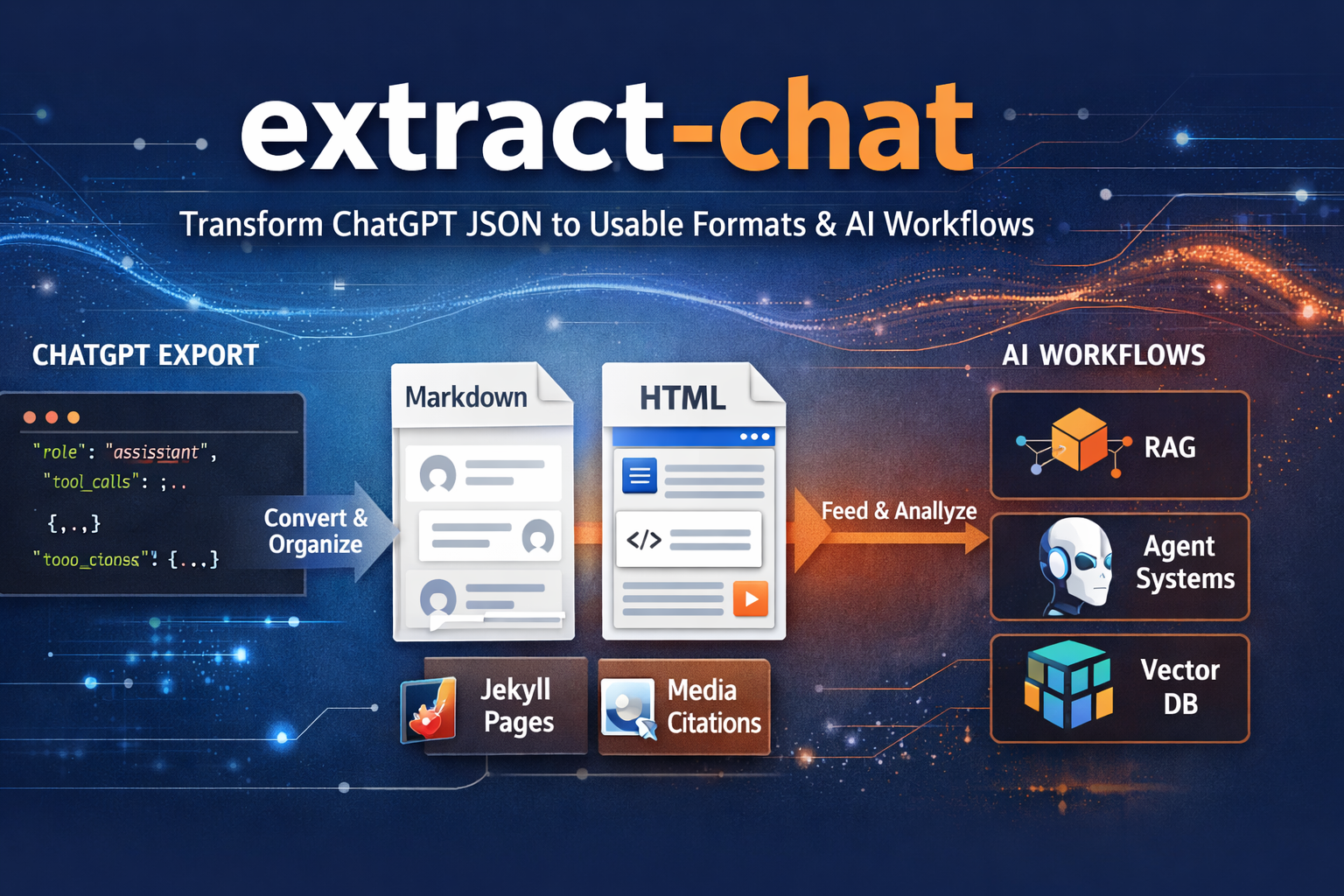
A conversation export should be something you can use, not just a JSON file you put aside and never open again. Extract Chat 1.0.0 brings our local conversation-conversion tools to a native Mac app, available soon on the Mac App Store. It turns supported ChatGPT, ChatGPT Work, Dots, and Hermes Desktop exports into readable Markdown or HTML, with available supporting files kept alongside the conversation. The app includes its conversion engine, so there is no separate Python installation to manage.
See the macOS app in action, or visit the Extract Chat product overview for project information and support.
From a downloaded archive to a readable conversation
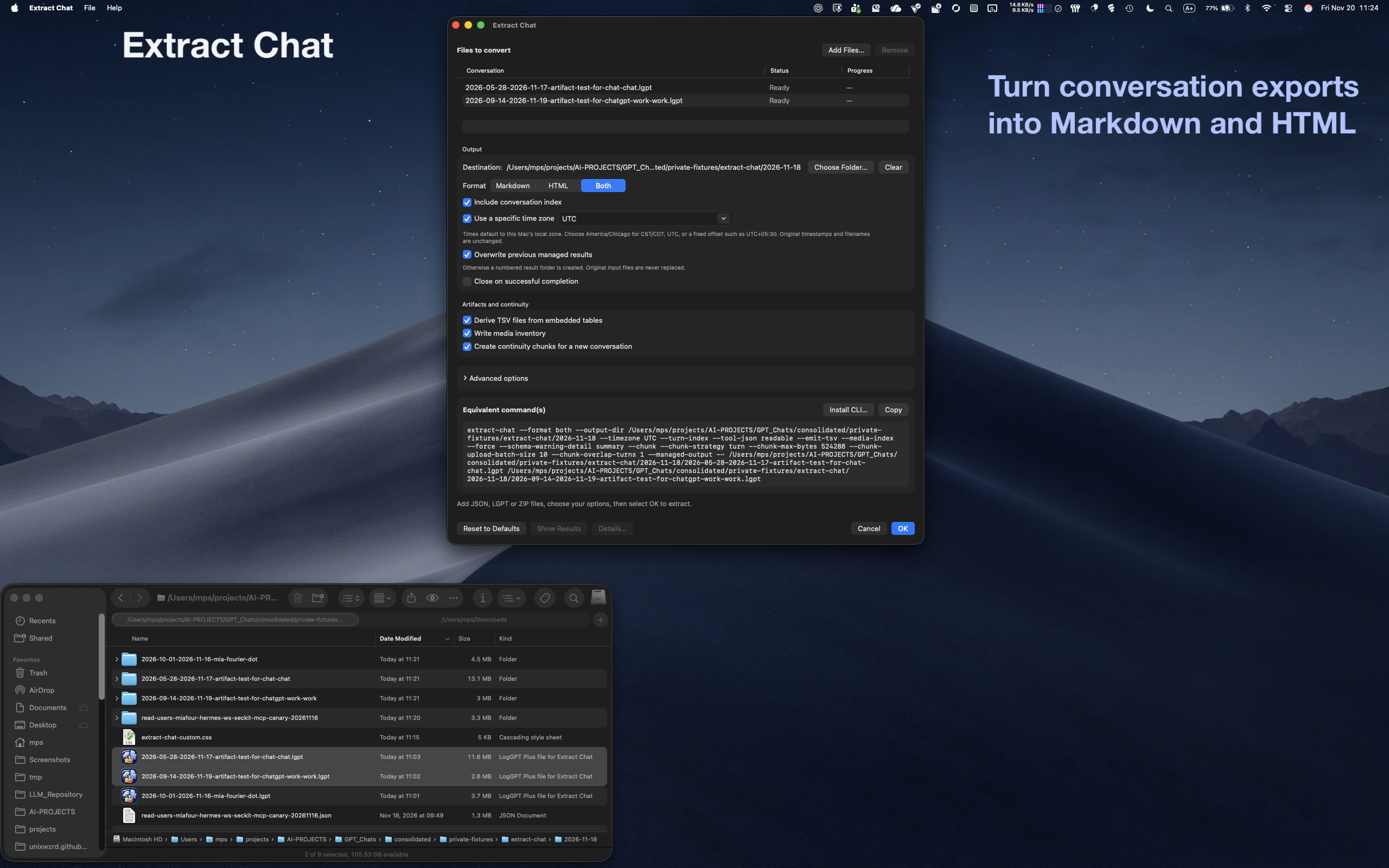
Drag conversation files from Finder into the app, use Add Files, or open a supported archive with Extract Chat. Choose Markdown, HTML, or both, select your output location, and start the conversion. Progress and results stay in the same window, whether you are processing one conversation or a batch.
The app accepts standalone JSON, existing ZIP archives, and LogGPT Plus’s new .lgpt files. Those .lgpt files are still standard ZIP containers, not a proprietary archive format. Existing ZIP exports continue to work without renaming, and double-clicking an .lgpt file adds it to the app’s queue so you can choose how to convert it.
Keep the files that make the conversation useful
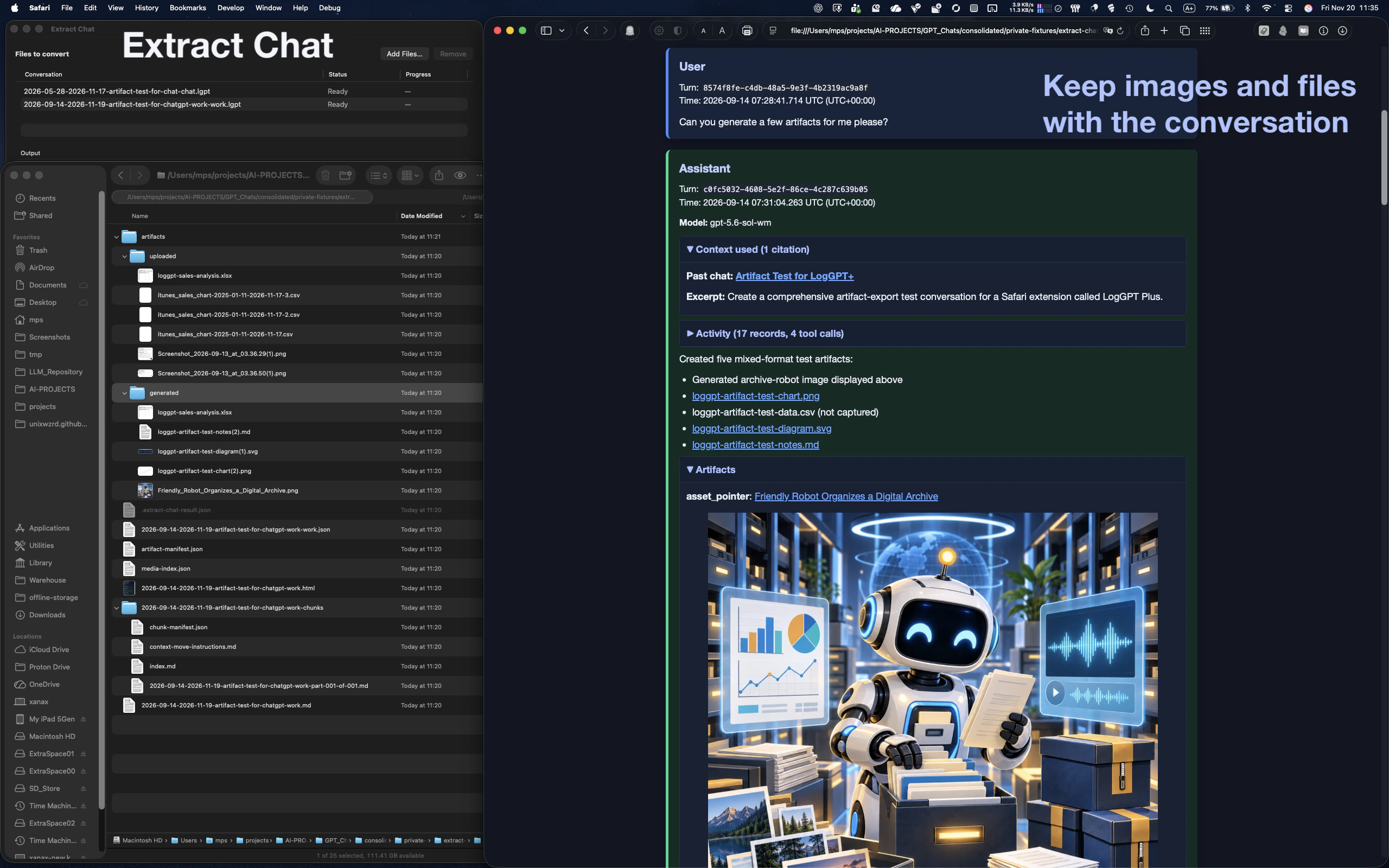
A discussion about a spreadsheet, a generated diagram, or a document is less useful when those files are missing from the record. Extract Chat organizes available uploaded and generated artifacts from supported archives and links the readable transcript to their local copies. References, citations, and captured images remain part of the record rather than becoming a separate pile of files to sort out later.
Each completed native-app result keeps a byte-for-byte copy of the source conversation JSON under its original filename, alongside the requested transcripts and available artifacts. The original input archive is not modified. You can reprocess the retained JSON with different settings, and its adjacent artifacts remain available to the conversion. Bear in mind that the retained JSON can include branches and metadata beyond the visible transcript; check what you are sharing before sending someone an entire result folder.
Read the conversation without losing the technical record
Version 1.0.0 also improves how the exported material is presented. An optional conversation index helps navigate longer histories, and a time-zone setting lets you choose how timestamps are displayed. Exported activity is organized into expandable sections, so dialogue can remain readable while tool calls, results, progress updates, and other recorded details are available when you need them.
Supported Hermes Desktop exports use the same conversion workflow, with their exported tool activity and context presented alongside the conversation. Tool arguments and results can be shown in a readable JSON view while retaining the raw representation for inspection. Recorded commands are displayed as text; Extract Chat does not execute them.
The output reflects what the source actually contains. Missing attachments are identified as not captured rather than reconstructed or downloaded. Dots exports cover the main timeline and available directly attached files, not linked task histories or nested reply histories. Extract Chat converts the record you have; it does not claim to recover material absent from the export.
Make the HTML look the way you want
You are not limited to our default HTML styling. View CSS shows the stylesheet currently in use, whether that is the bundled default or a custom file. Copy it or use Save As to save a version you can edit, then select your edited file with Choose CSS and enable custom HTML styling for the next conversion.
That gives you control over fonts, colors, spacing, and the presentation of code and tool output without changing the conversation itself. The CSS viewer is read-only; editing happens in your preferred editor. Markdown remains available independently of the HTML theme.
Process a batch or prepare the next conversation
Batch conversion includes per-file status, overall progress, cancellation, and visible diagnostics. Completed results remain available if a later file fails or you cancel the remaining work. Show Results opens the successful output locations, so you do not have to hunt through folders to see what finished.
Optional continuity chunks prepare longer conversations for continued work elsewhere. Byte, line, and token limits, overlap, and upload-batch settings let you shape the handoff for the destination. The app also displays equivalent commands you can copy, and Install CLI creates a launcher for its bundled engine when you want to automate repeatable conversions. The separately installed Python command-line tool remains available for existing workflows.
Available soon for macOS
The initial native release supports Apple silicon Macs running macOS 14 or later and is coming soon to the Mac App Store. Conversion runs locally: you do not need an Extract Chat account or a hosted conversion service. LogGPT is a separate app for downloading supported conversations and their available artifacts; Extract Chat handles the local conversion afterward.
Explore the screenshot walkthrough for a closer look at the workflow. The version 1.0.0 source and documentation are available on GitHub, including the macOS guide and release changelog. For questions or help, visit the project overview or contact us.
Join the Discussion
Comments for this post live in GitHub Discussions. That keeps moderation in one place and gives the conversation a stable home.