
Extract Chat for macOS
Extract Chat overview · Source and usage documentation · Get help
Extract Chat turns downloaded conversations into a local record you can read, search, and reuse. The native macOS app puts file selection, conversion options, progress, and results in one window, without requiring a separate Python installation. It accepts supported ChatGPT, ChatGPT Work, Dots, and Hermes Desktop exports as JSON or supported archives, including LogGPT’s ZIP-compatible .lgpt files.
The initial native app targets Apple silicon Macs running macOS 14 or later and has been submitted for App Store review. The command-line tool remains available separately. These screenshots show the macOS app; select any image to open it at full size.
Choose files and output
Drag files from Finder into the selection box, use Add Files, or open a supported file with Extract Chat. Choose Markdown, HTML, or both, then select OK to start. Each input gets its own result folder beside the original by default; Choose Folder lets you send the results to a common destination instead. Original input files are not modified.
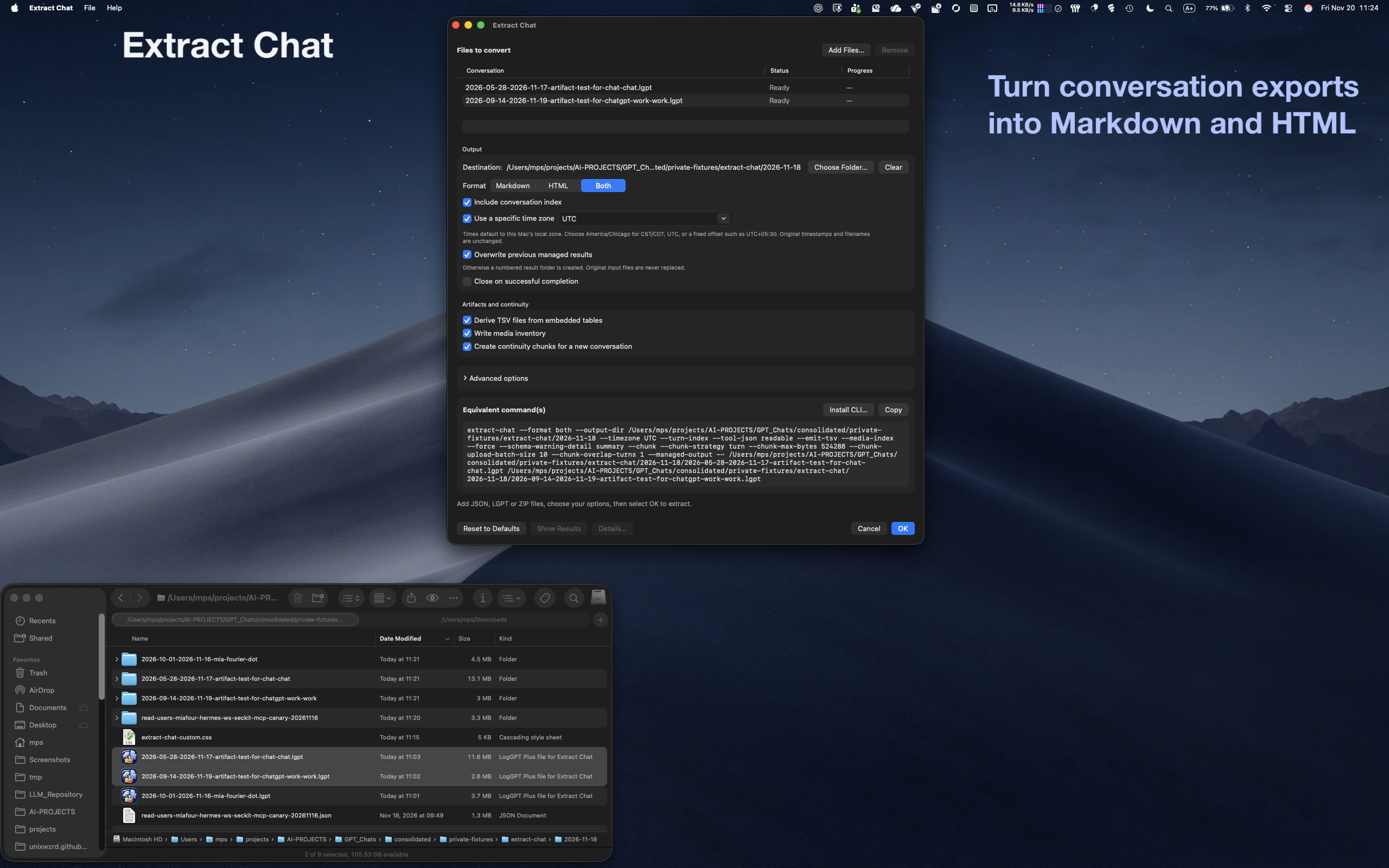
Keep the conversation and its available files together
An exported conversation often makes more sense with the images, documents, and other files that accompanied it. Extract Chat organizes available artifacts and links the readable transcript to the local copies. It processes what is present in the export; it does not sign in to ChatGPT or download missing attachments.
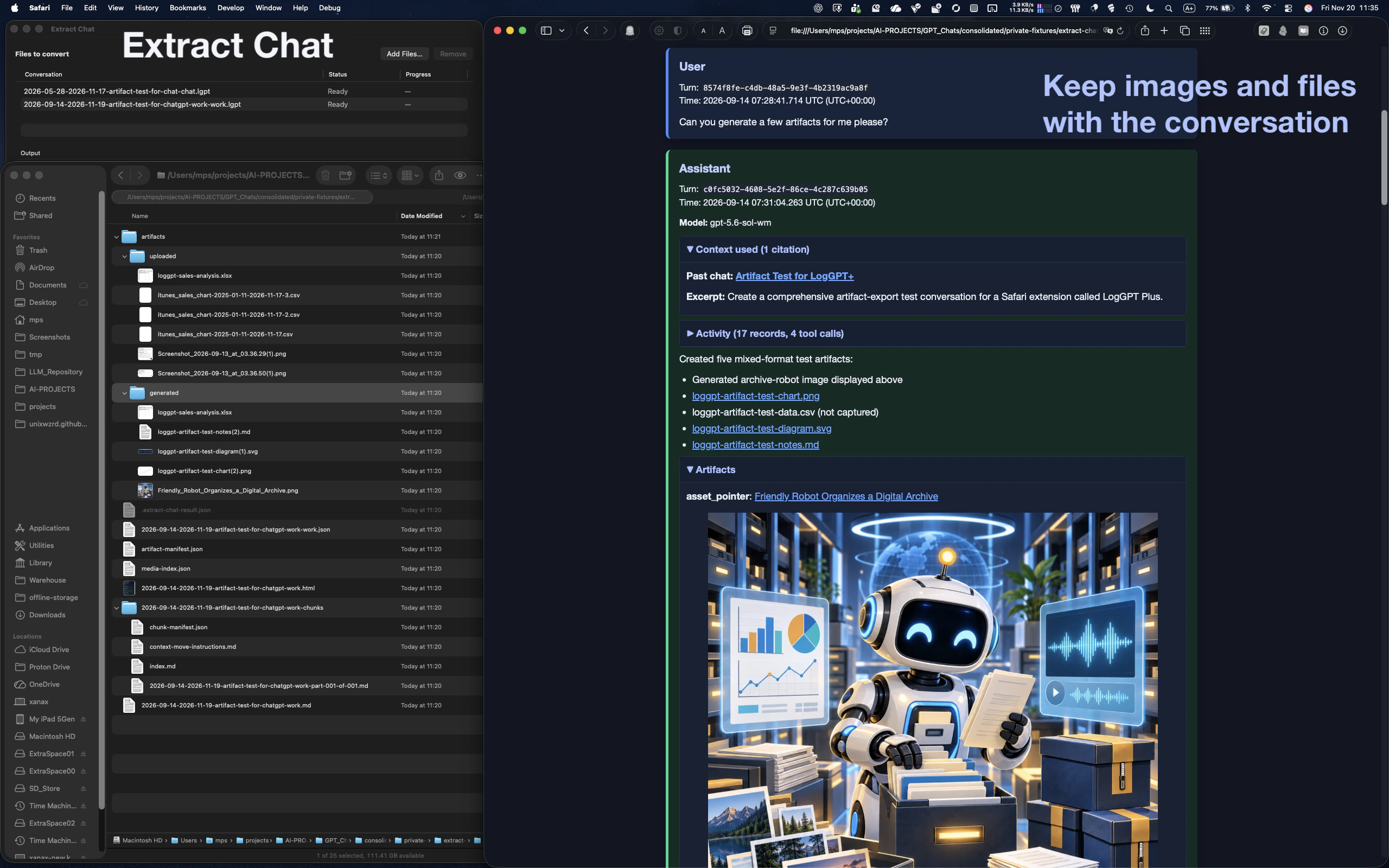
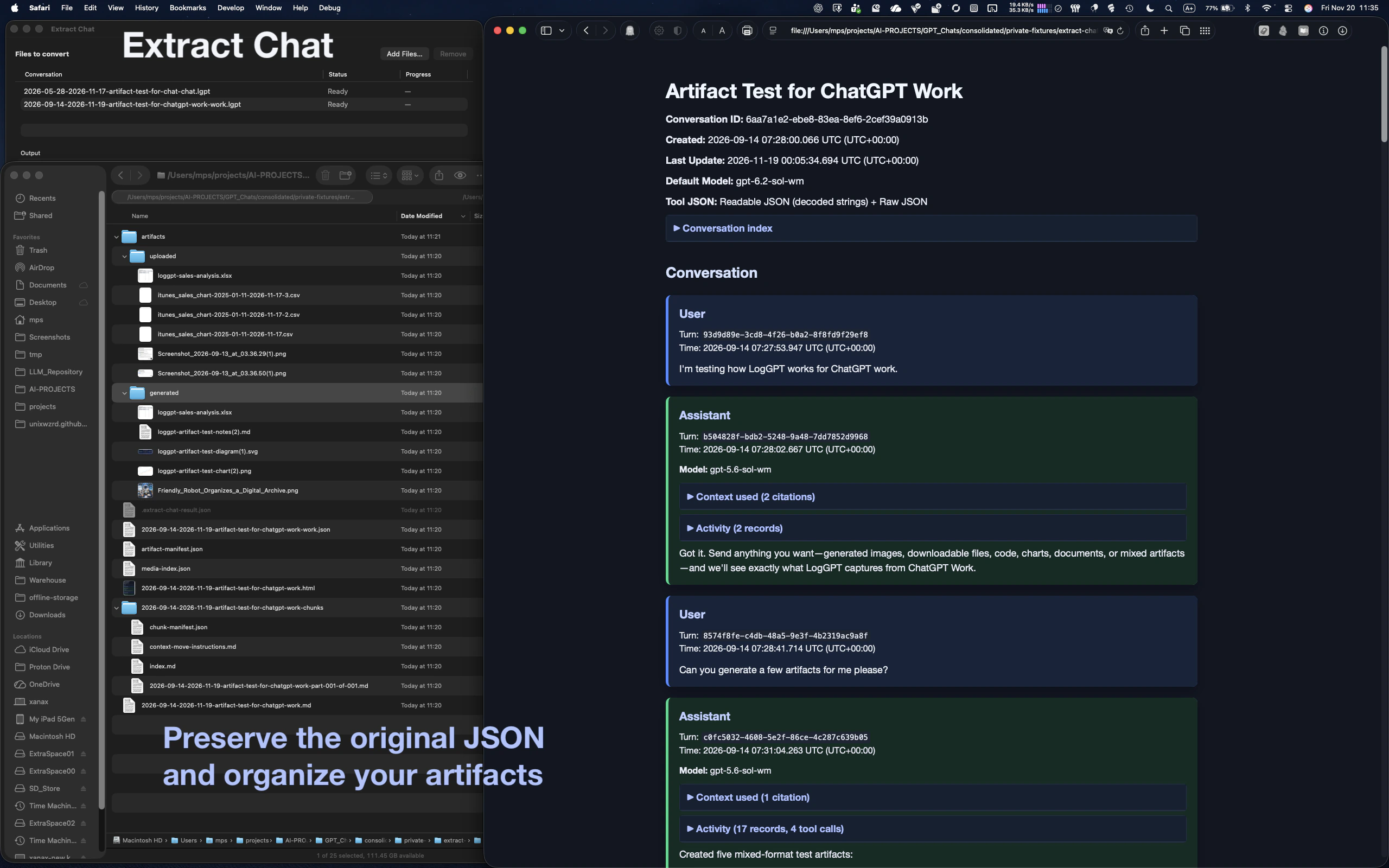
The results retain the original conversation JSON alongside the requested transcripts and available supporting files. The optional conversation index helps navigate longer histories. You can reprocess the retained JSON with different settings without replacing the original archive.
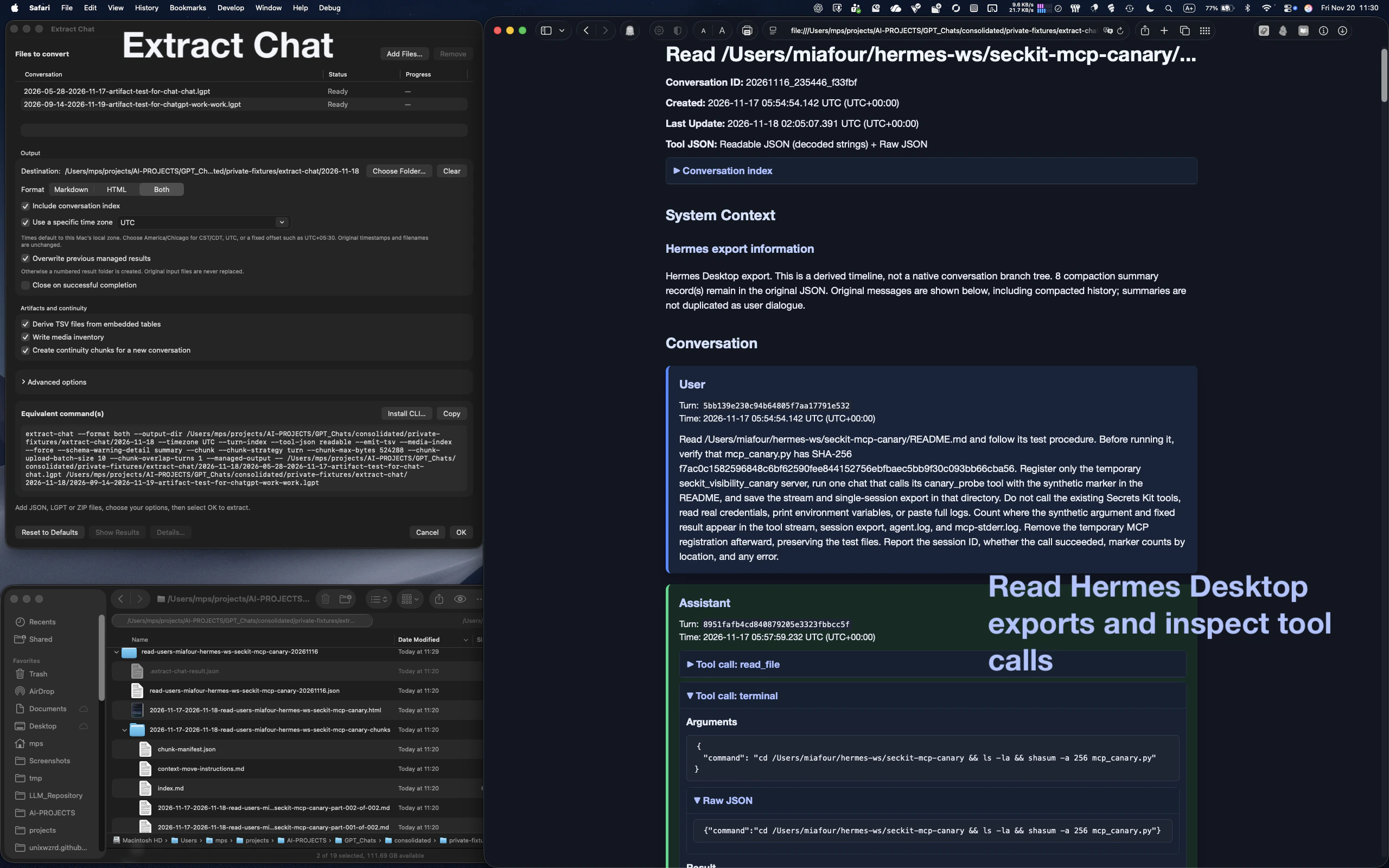
Inspect exported agent activity
Supported Hermes Desktop exports can include tool calls, results, and system context as well as dialogue. Extract Chat presents that exported material in readable sections, with tool details available for inspection. Commands and tool payloads are displayed as text, not executed. The result reflects the records present in the export rather than inventing activity that was not captured.
Convert a batch and prepare continuity chunks
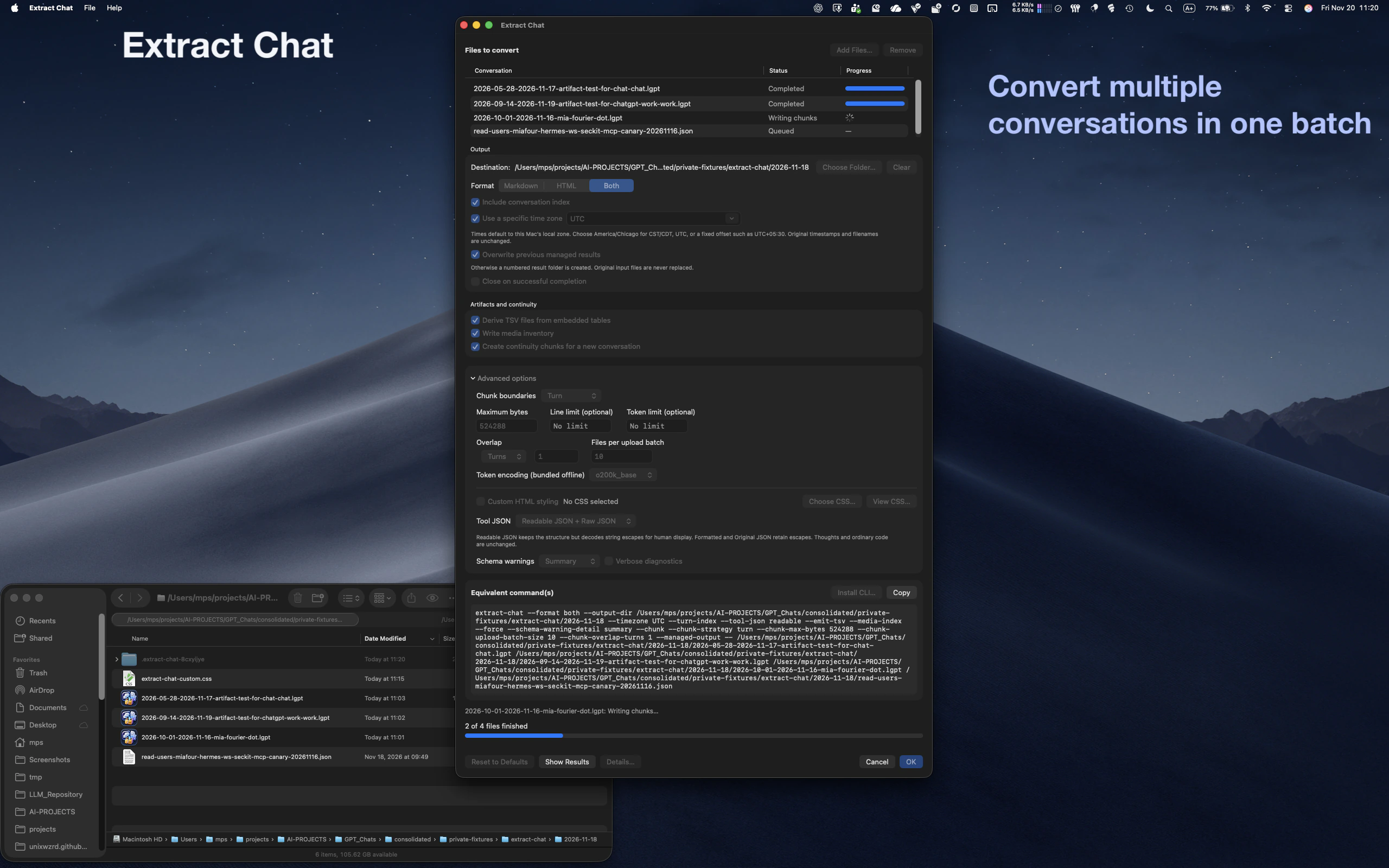
Add several conversations to the queue and convert them in one batch. Progress is shown for the individual files and the overall job, and you can cancel an active conversion. Results from files already completed remain available. Show Results opens successful output locations, while diagnostics help identify a file that could not be processed.
For a conversation that needs to move into another working context, optional continuity chunks split the output into manageable pieces. Advanced options include byte, line, and token limits, overlap, and files per upload batch, so the handoff can fit the destination rather than becoming another oversized document.
Customize the HTML stylesheet
The HTML output does not have to keep our default appearance. Under Advanced options, View CSS opens the stylesheet currently in use: the bundled default when custom styling is off, or your selected stylesheet when it is on. The viewer is read-only, but you can copy the complete CSS or use Save As to save a UTF-8 copy.
Edit that copy in your preferred editor, enable Custom HTML styling, and select it with Choose CSS before converting again. You can adjust fonts, colors, spacing, and the presentation of code and tool output without changing the conversation itself. Saving a stylesheet does not automatically select it; choose the edited file when you are ready to use it. Custom CSS affects HTML output, not Markdown.
Use the command line when it suits the job
The app shows equivalent commands for the selected conversion, which you can copy for repeatable work. Install CLI saves a small launcher that uses the app’s bundled conversion engine. Keep the app at its installed location; the launcher does not require a separate Python installation. The separately installed Python command-line package remains another option for existing workflows.
See the macOS usage guide for file permissions and command-line setup, or return to the Extract Chat overview and project updates.