
LogGPT User Guide for iPhone and iPad
On this page
LogGPT saves the ChatGPT conversation you have open in Safari. Basic saves a .json file. LogGPT Plus is a one-time upgrade that can save the conversation and selected images, charts, attachments, and web thumbnails in a ZIP-based .lgpt archive. Both save to the Files app.
LogGPT overview · Get LogGPT support on GitHub
This guide applies to iOS and iPadOS 16 or later. The screenshots show iOS and iPadOS 27.2. Open the iPhone screenshots under each step to see where Safari and Files place the controls. Tap any screenshot to enlarge it.
Enable LogGPT in Safari
- Open the LogGPT app after installing it. Its Safari section shows the setup steps.
- Open
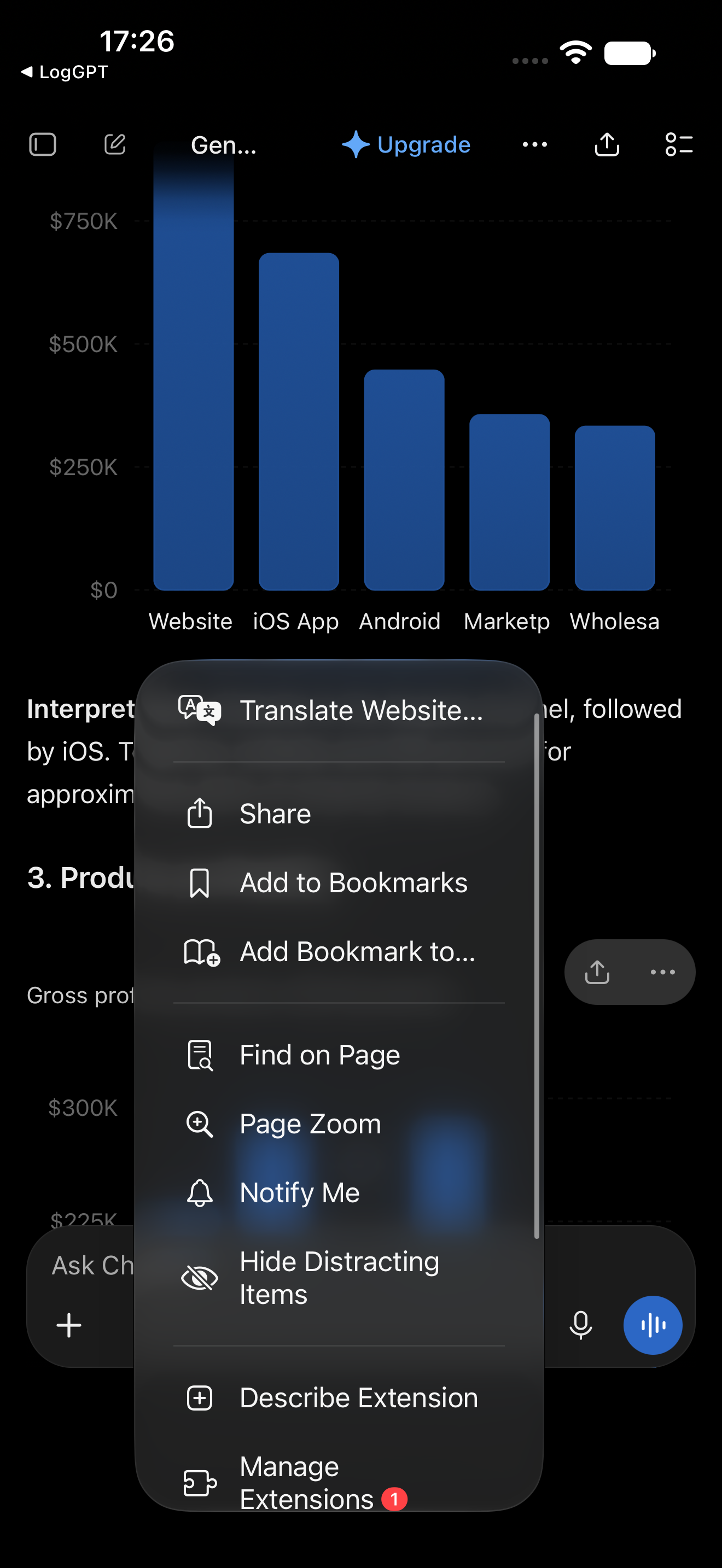
chatgpt.comin Safari and sign in to ChatGPT. On iPhone, tap the page menu beside the address bar and scroll to Manage Extensions. On iPad, use the puzzle-piece button or the page menu. Turn on LogGPT. You can also enable it in Settings ‘ Apps ‘ Safari ‘ Extensions ‘ LogGPT. On older versions, start at Settings ‘ Safari ‘ Extensions. - Open a conversation. Tap LogGPT in Safari’s extensions menu. If Safari asks for access to
chatgpt.com, choose Allow for One Day for a temporary grant or Always Allow to keep it enabled on that site. - Reload the conversation so the extension can add its download button.
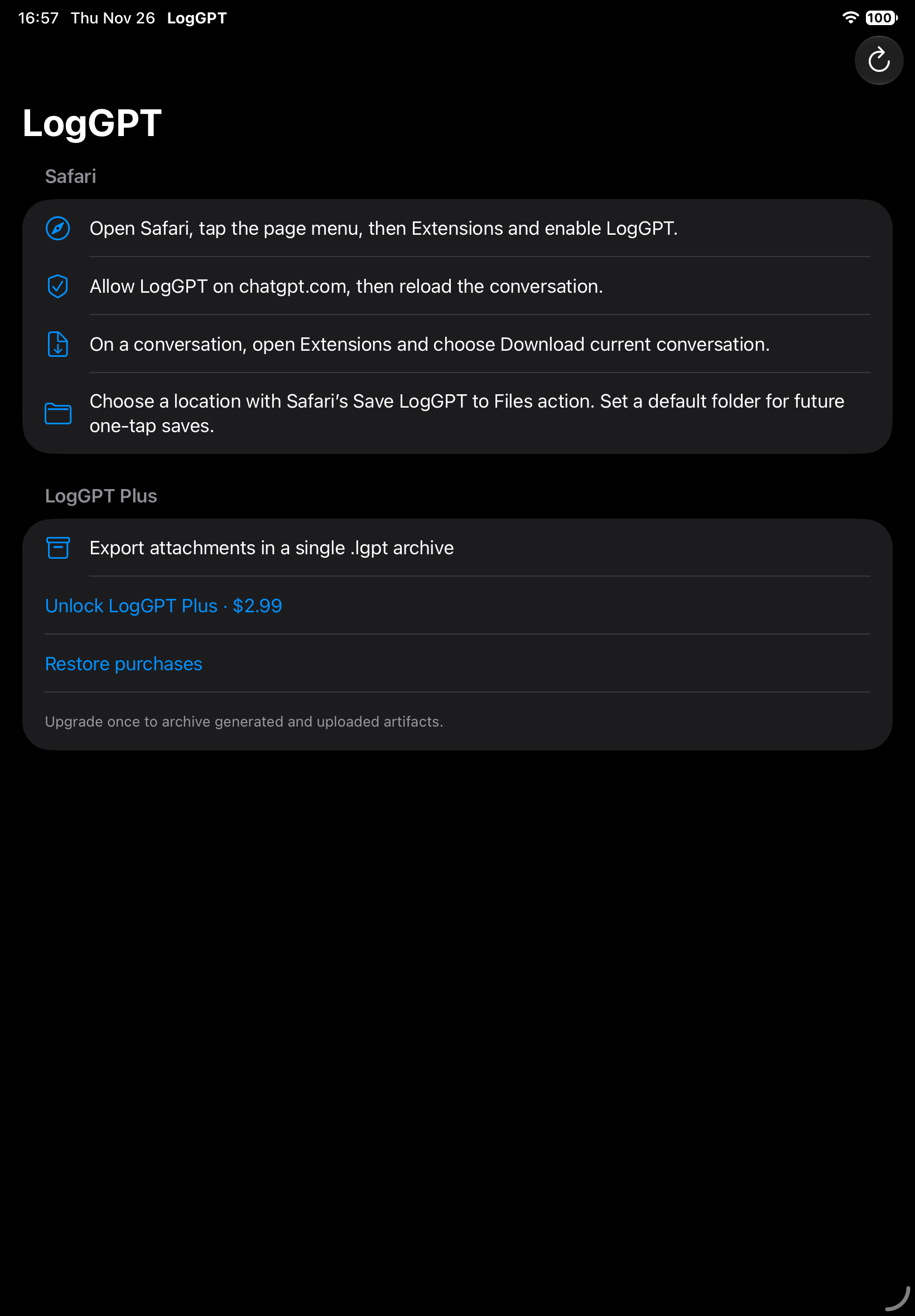
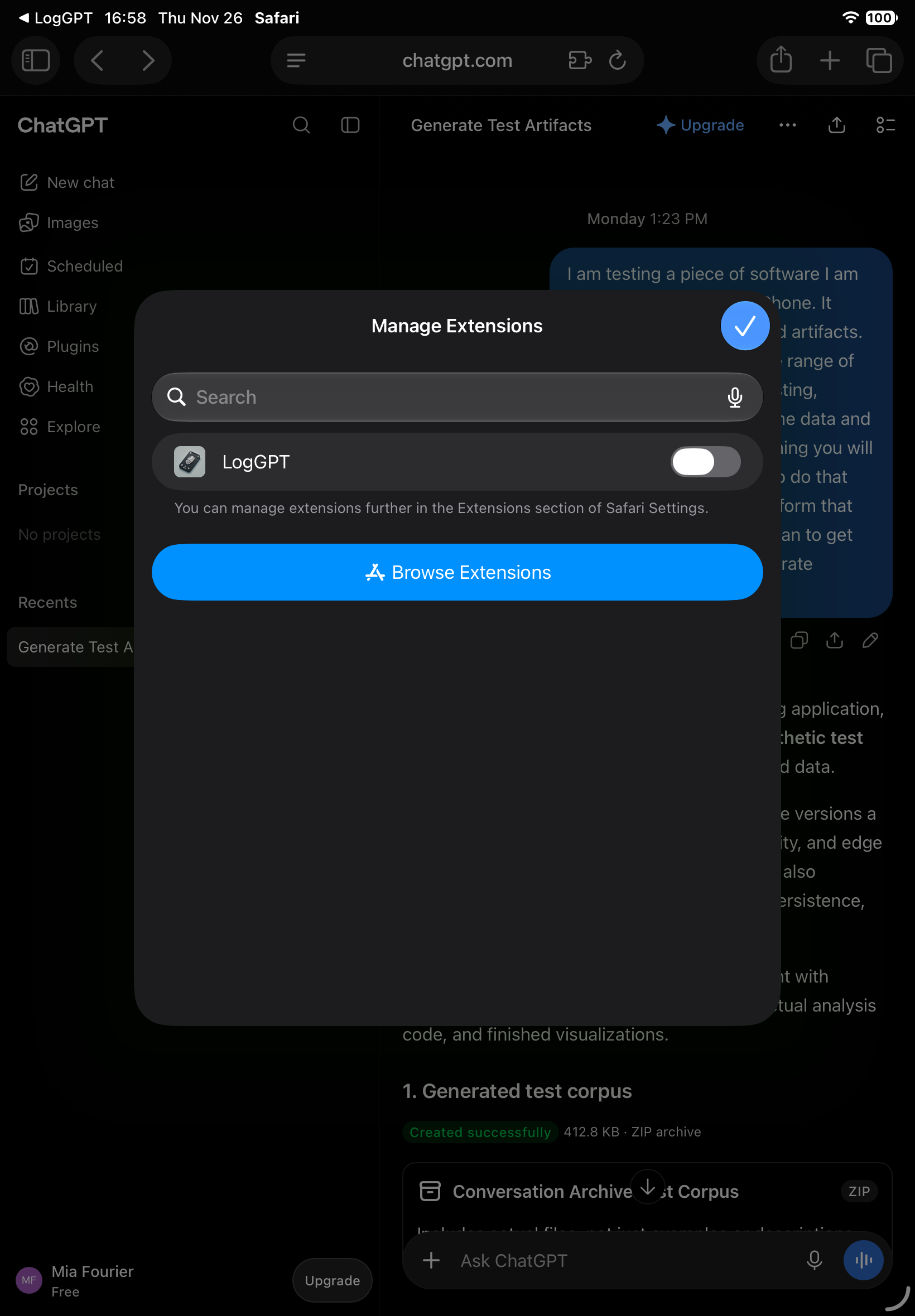
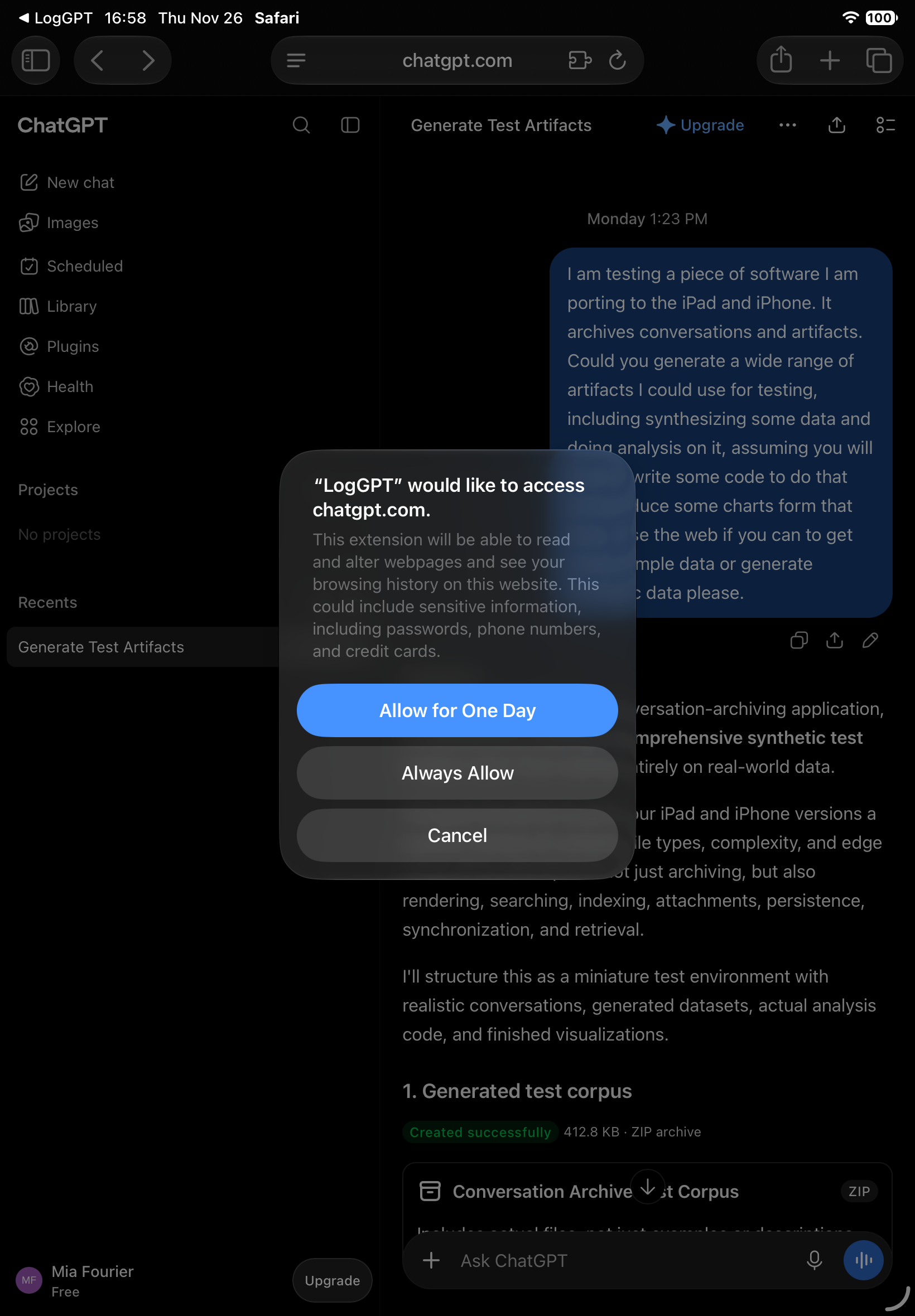
Enable LogGPT on iPhone
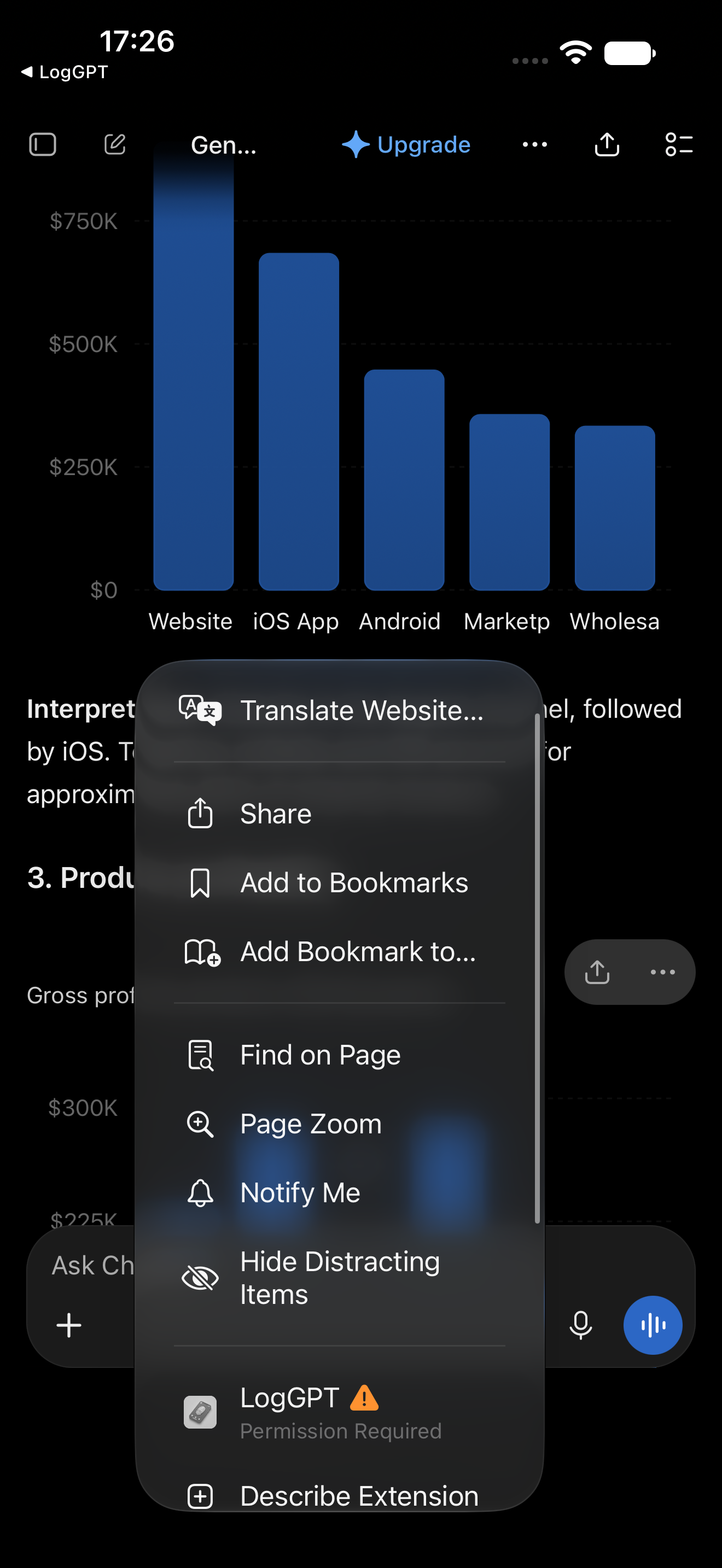
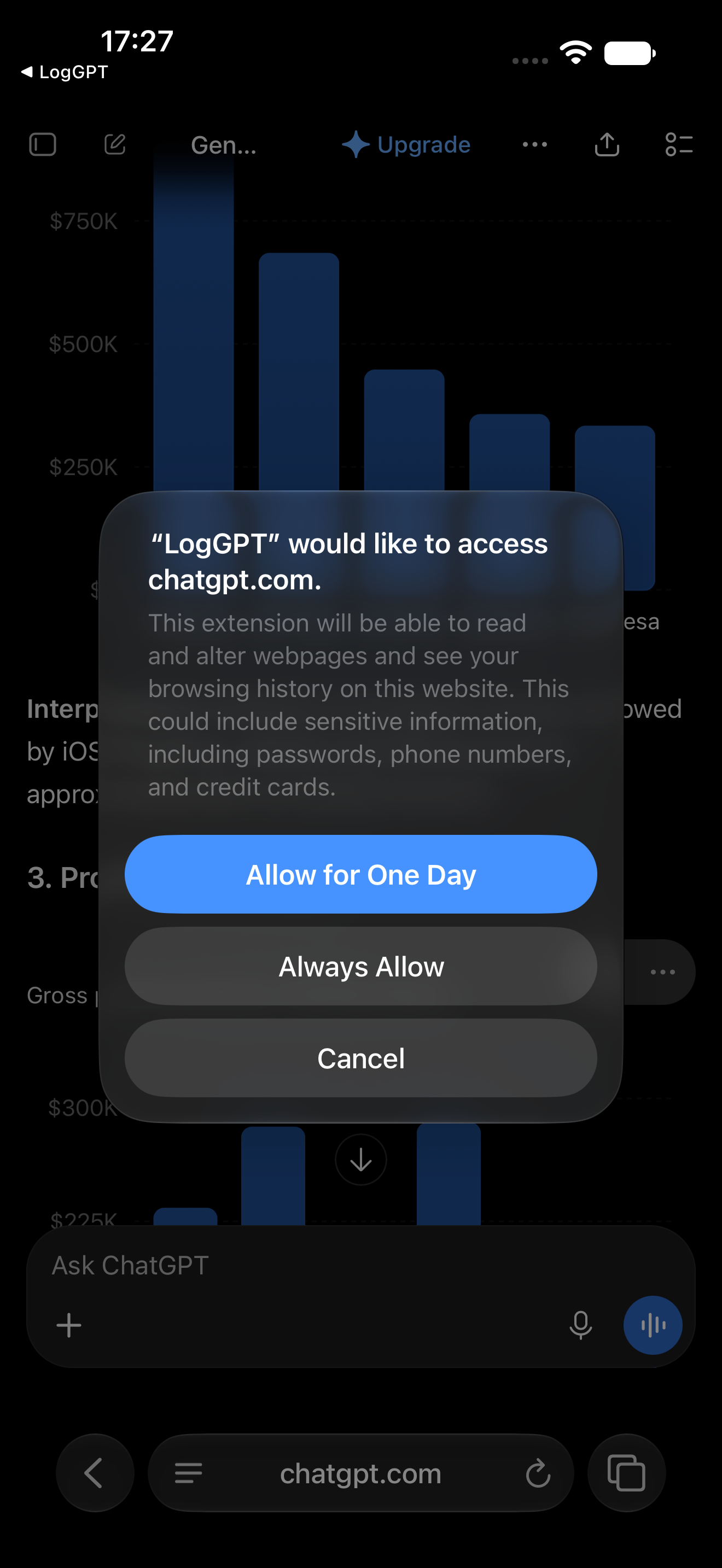
Export your first conversation
Tap the LogGPT download icon in the ChatGPT conversation header. If you can’t see the header while the message field is focused, tap outside the message field. You can also tap LogGPT in Safari’s extensions menu and choose Download current conversation.
With Basic, LogGPT prepares the conversation as JSON. Export ready shows the filename when the file is ready to save.
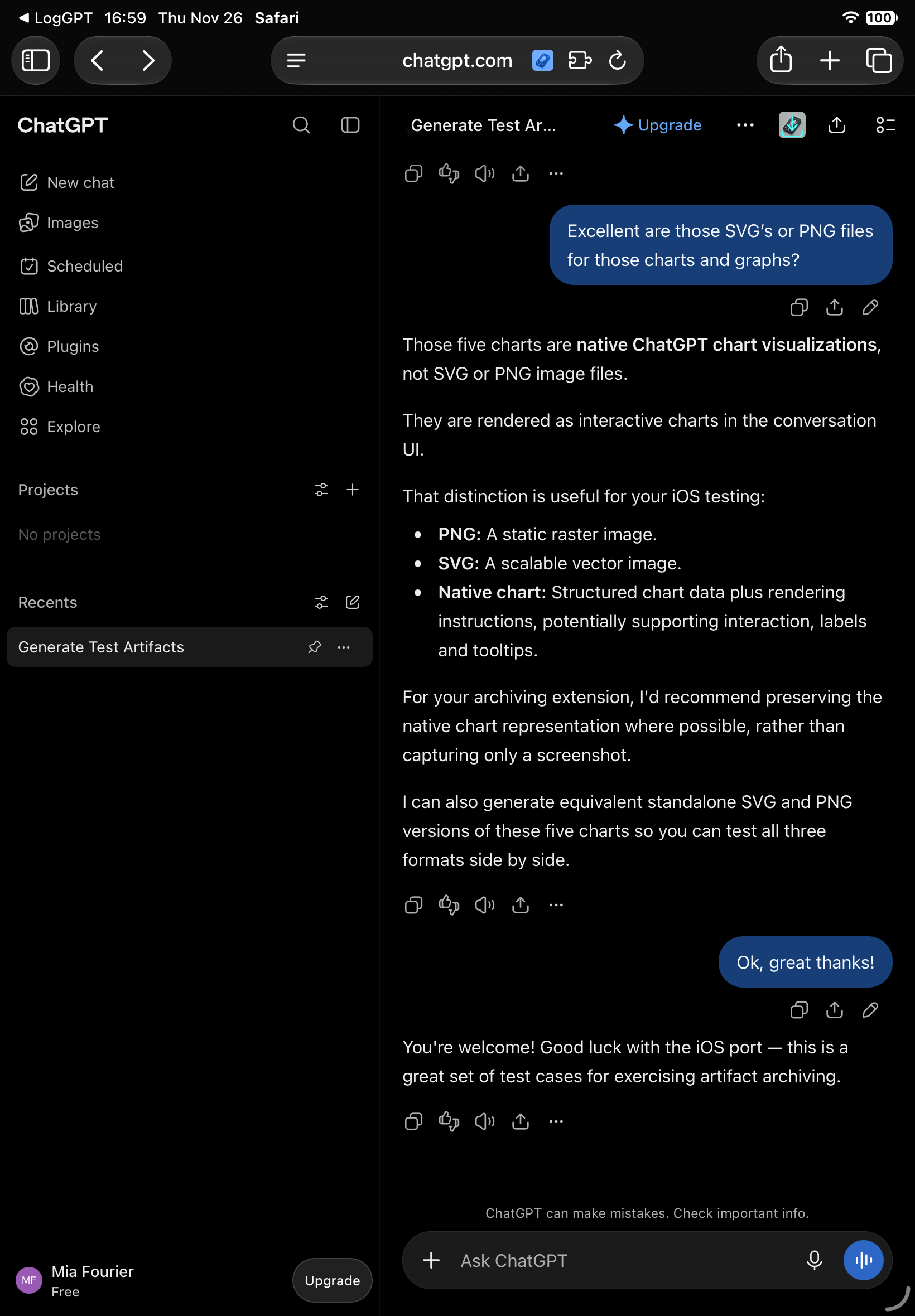
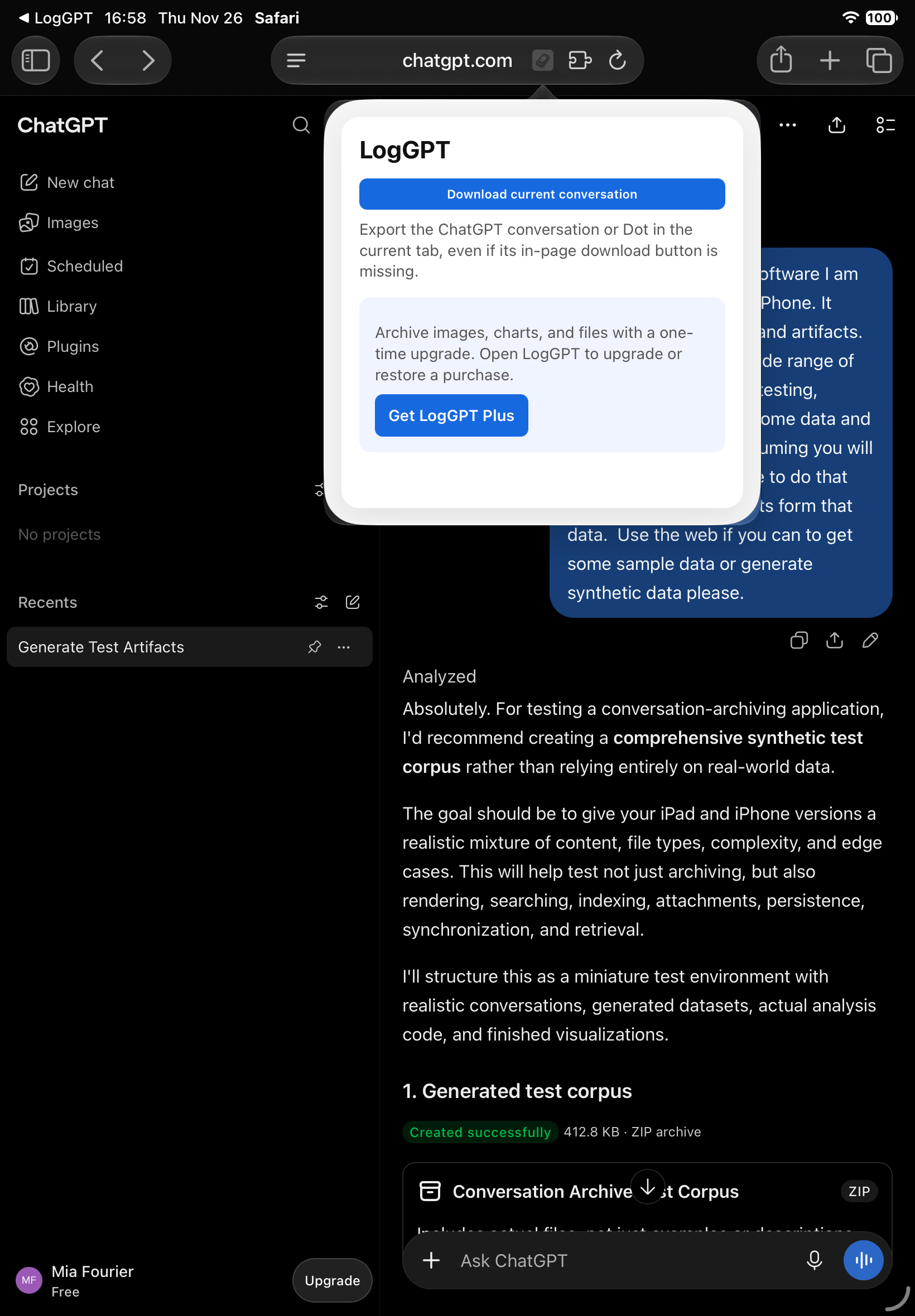
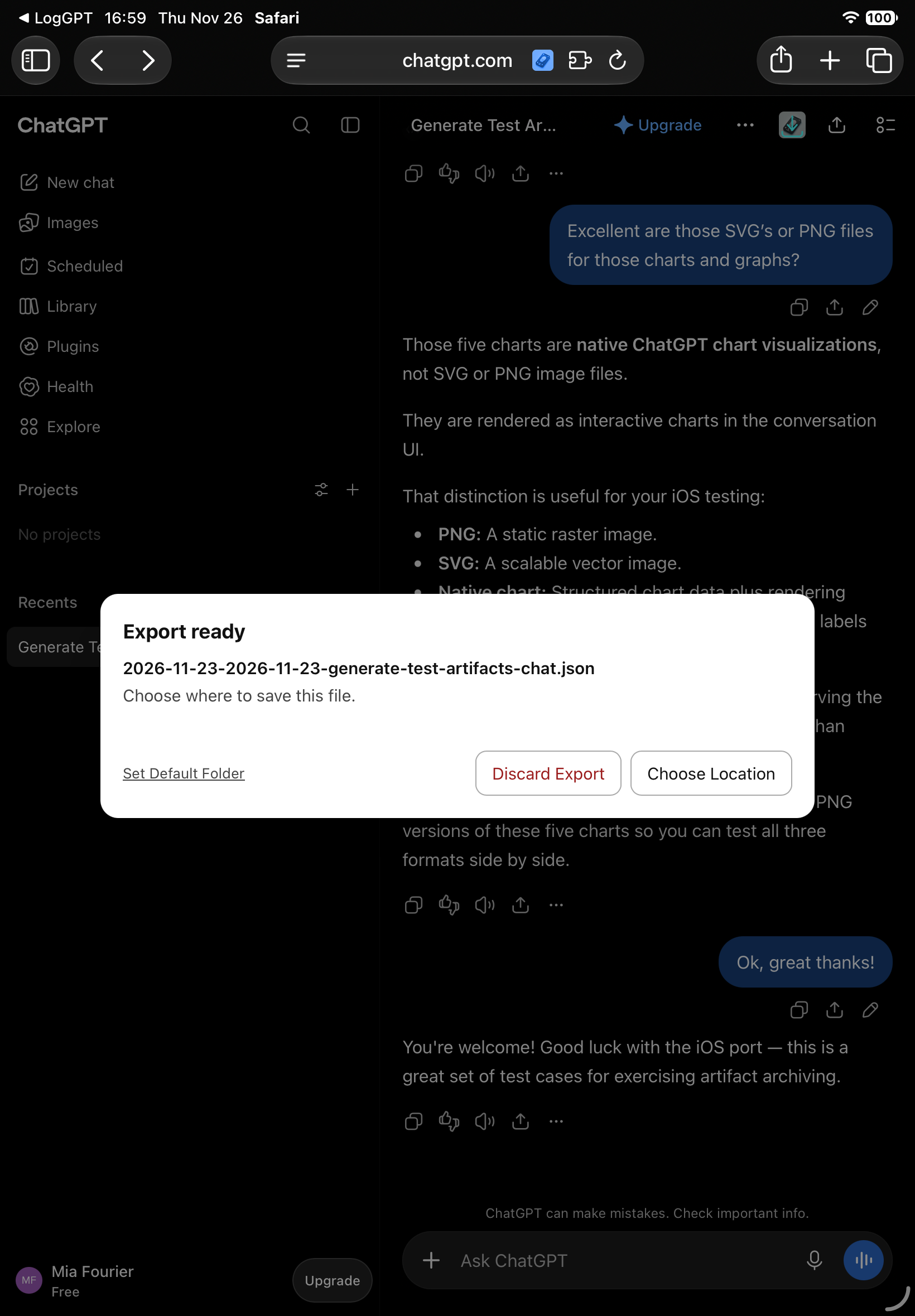
Start a download on iPhone
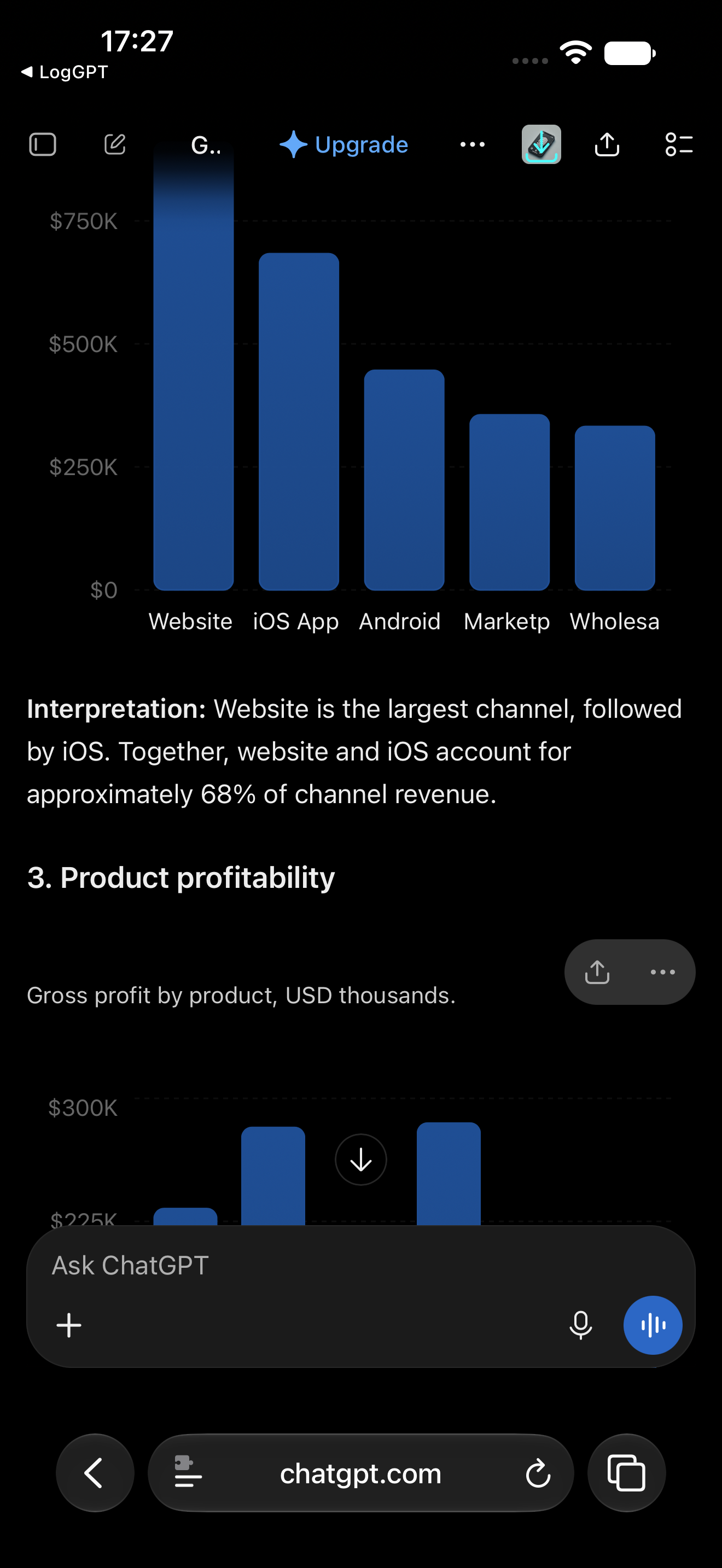
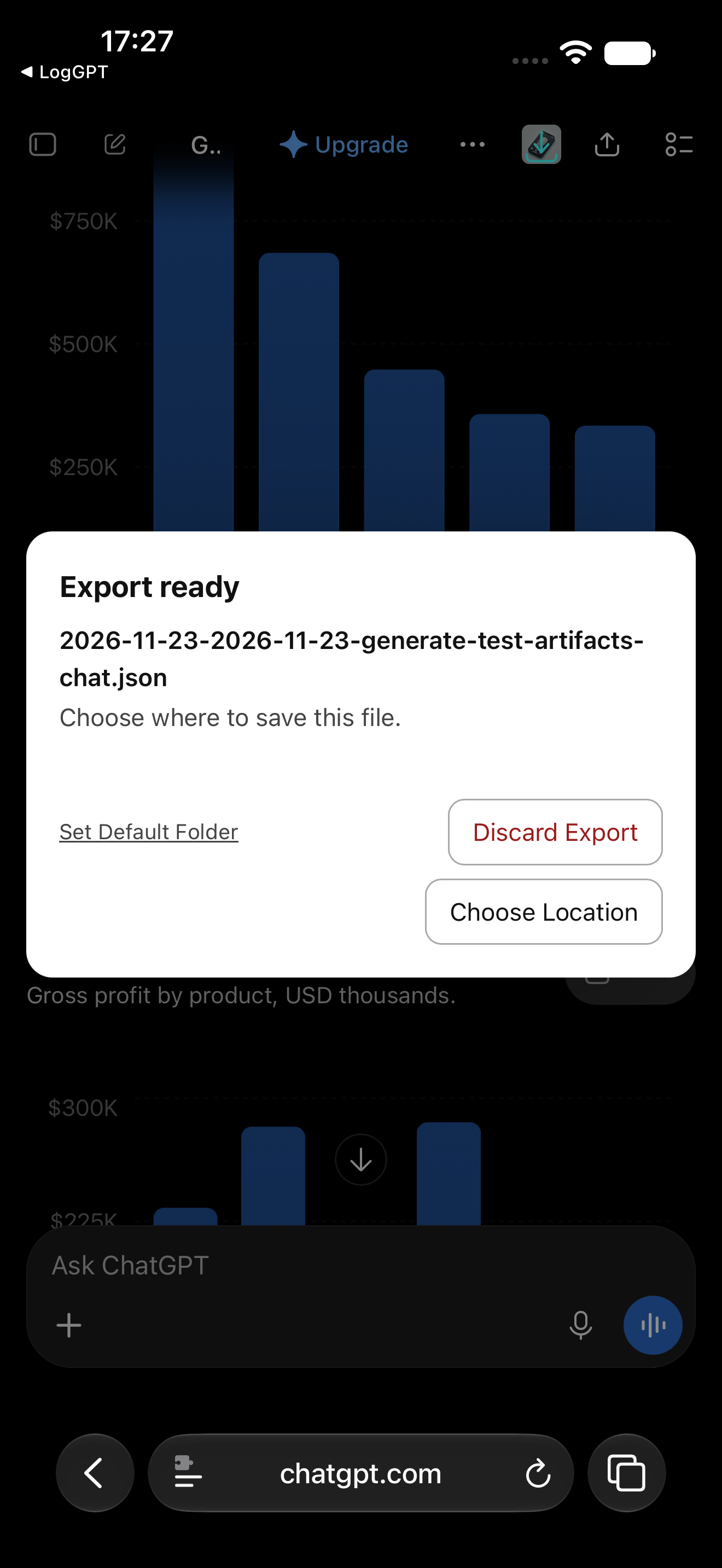
Save the export in Files
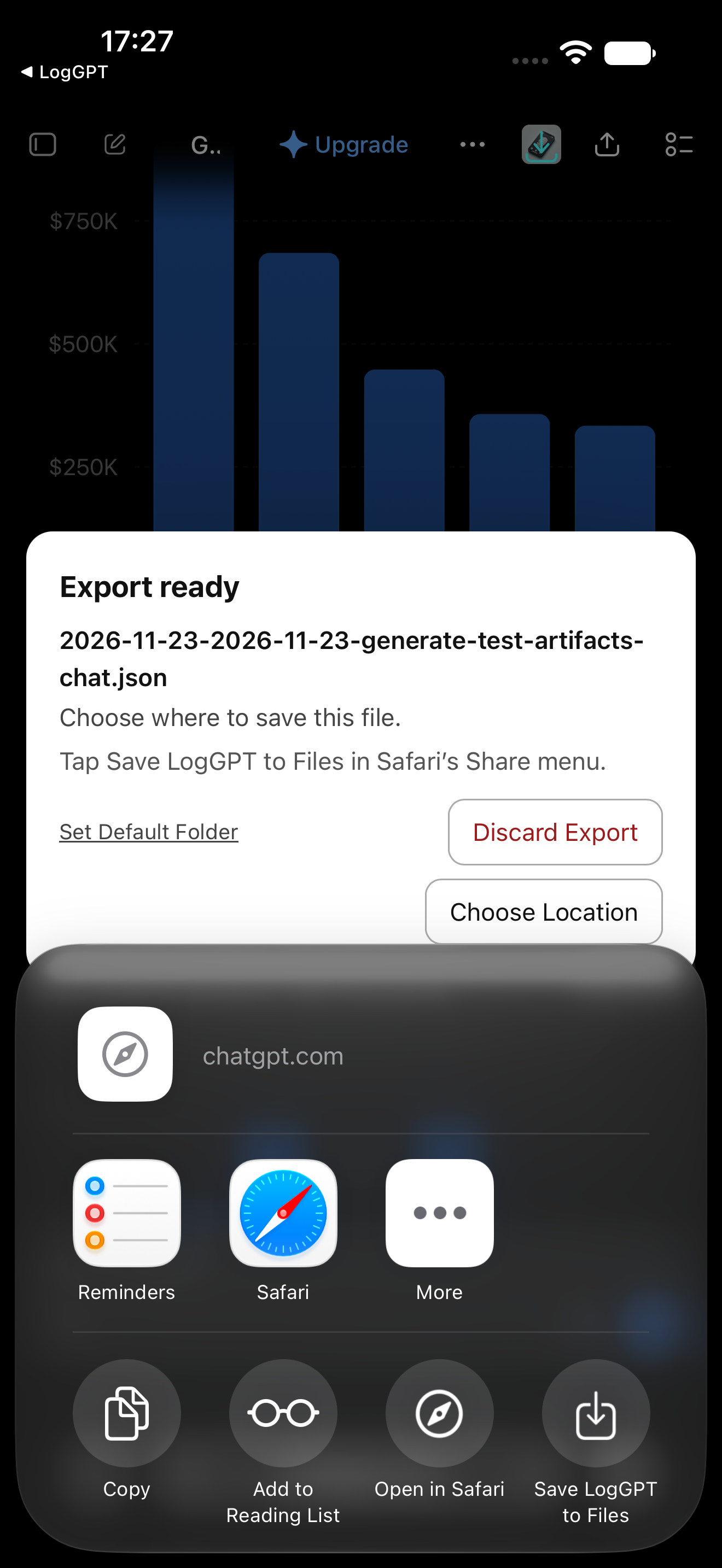
- In Export ready, tap Choose Location. If a default folder is already set, tap Change Location to choose a different folder for this file.
- Choose Save LogGPT to Files from Safari’s Share menu. If the action is farther down, tap View More or scroll.
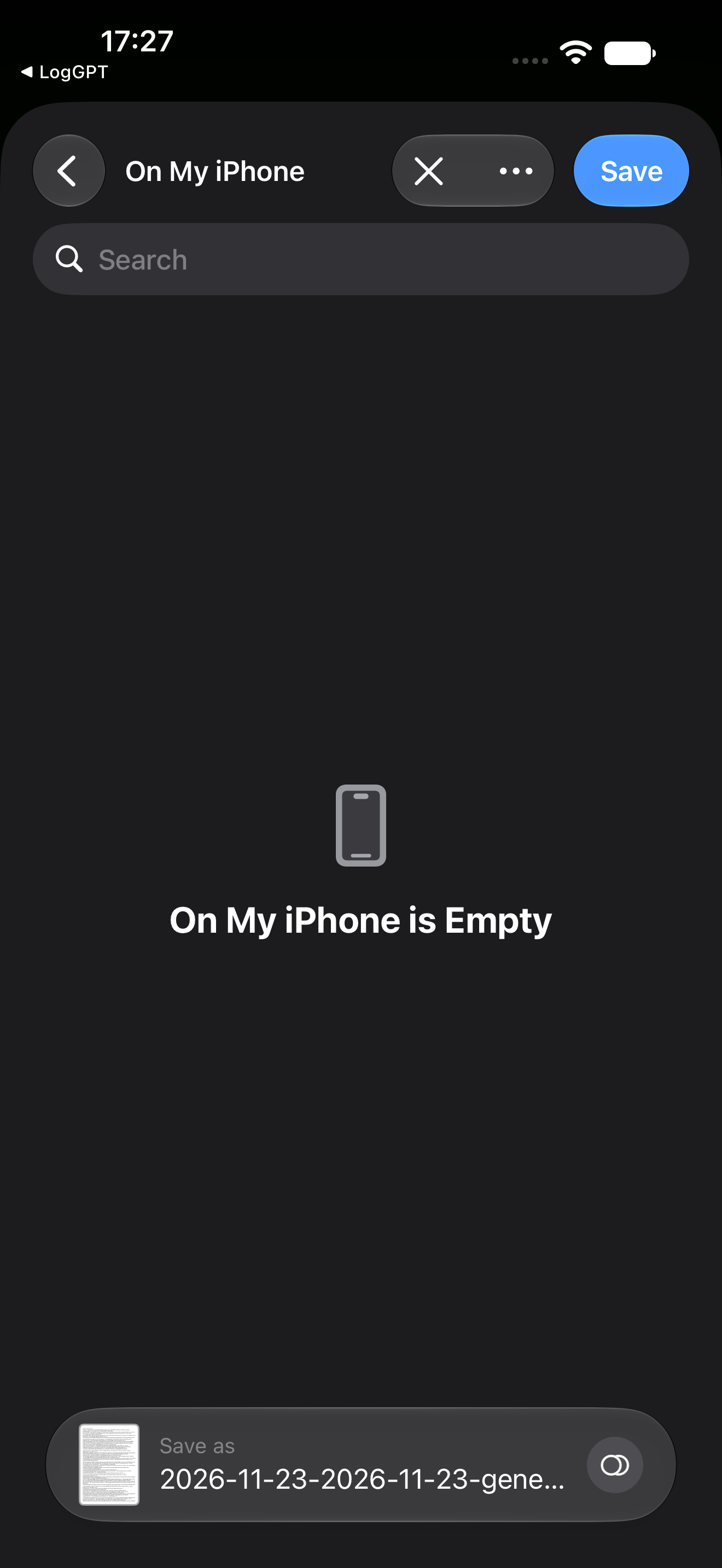
- In the Files picker, open a folder under On My iPhone, On My iPad, or iCloud Drive. Check the folder name at the top. Tap the filename field at the bottom if you want to rename the export.
- Tap the blue Save button. The export appears in the folder you selected.
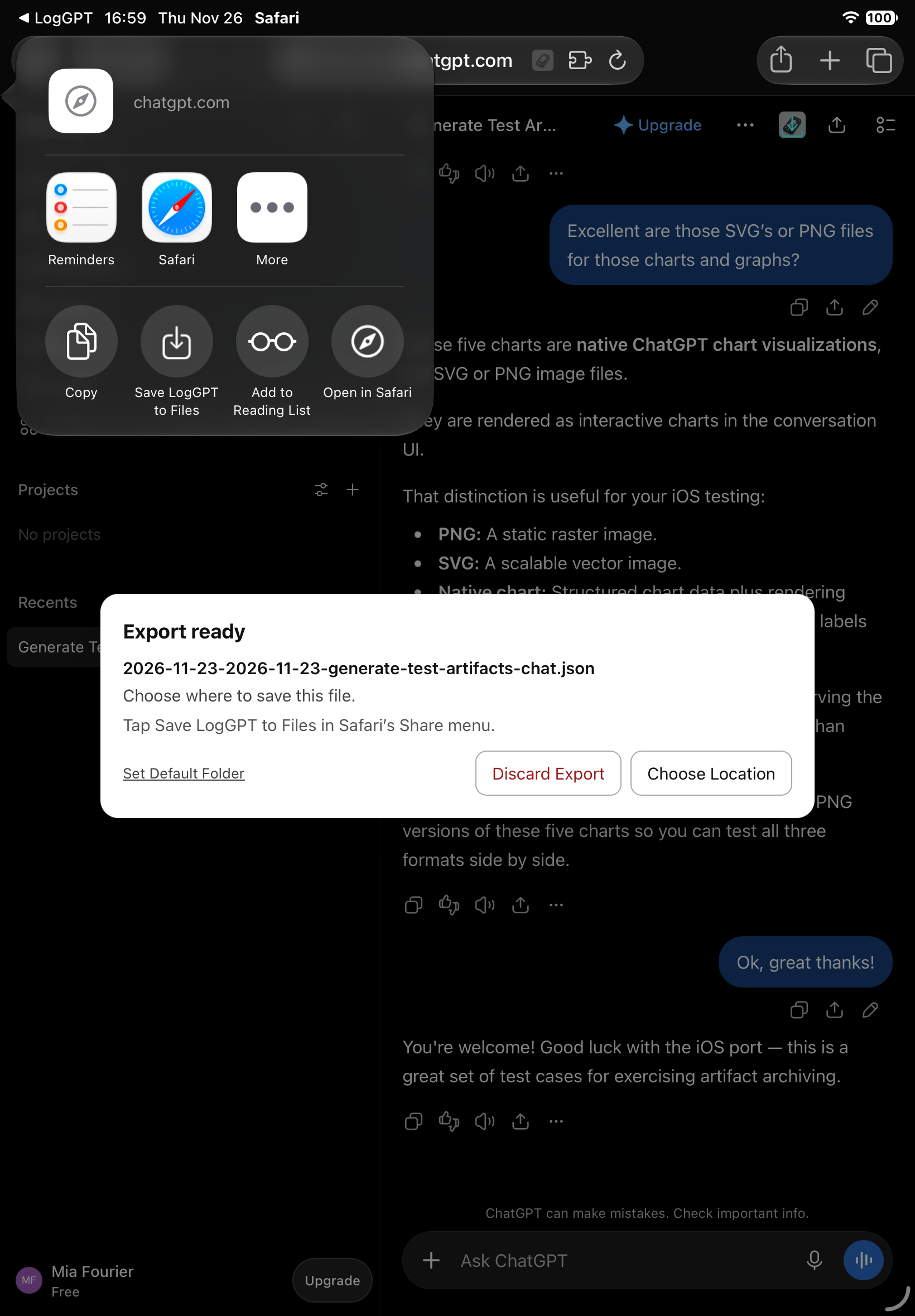
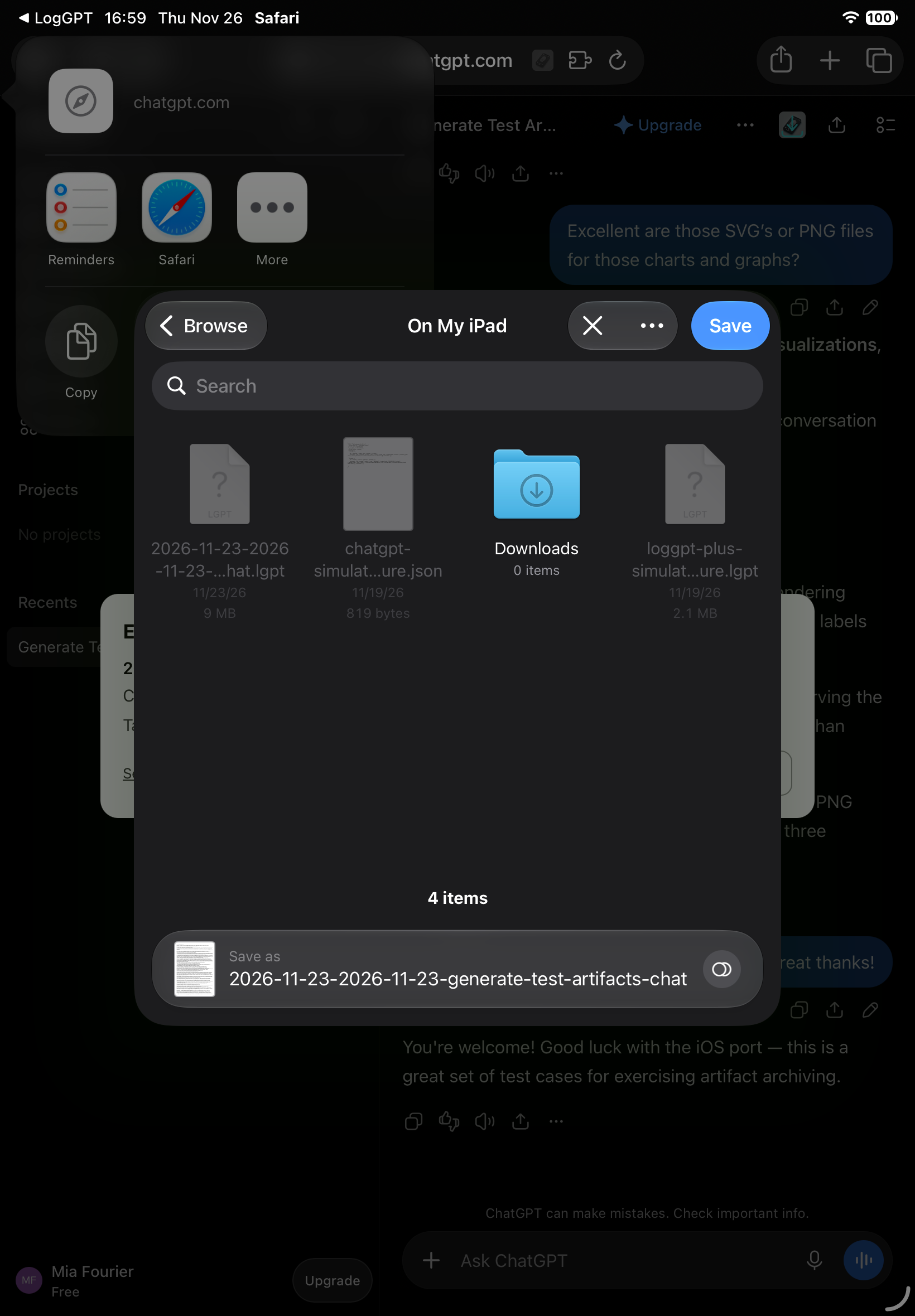

Save the file on iPhone
Unlock LogGPT Plus
Open LogGPT and tap Unlock LogGPT Plus. Review the one-time price shown in the app and confirm through the App Store. If you’ve already purchased Plus, tap Restore purchases using the Apple Account that purchased it. The app shows Plus is unlocked when the upgrade is active.
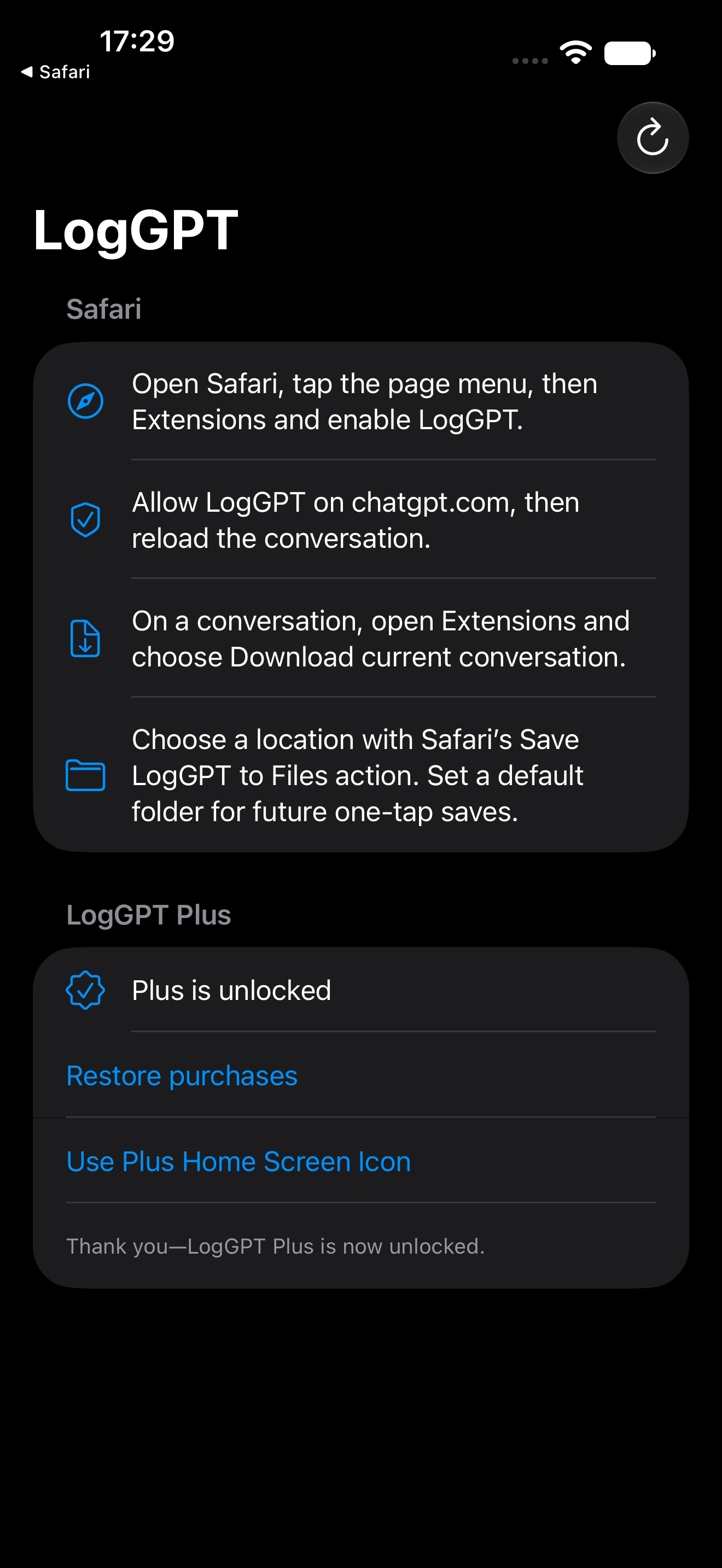
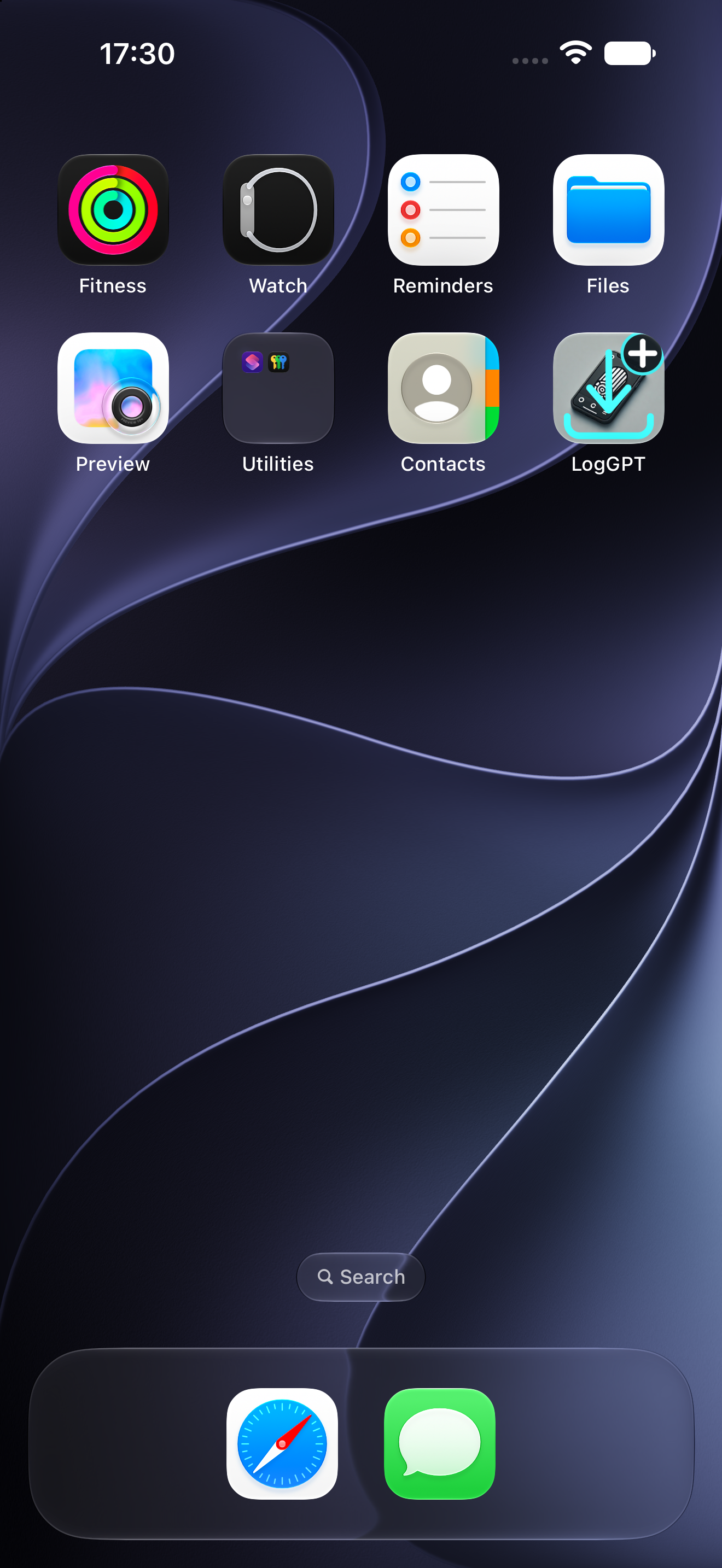
Tap Use Plus Home Screen Icon if you’d like to give LogGPT the Plus icon. Tap Use Standard Home Screen Icon to switch back.
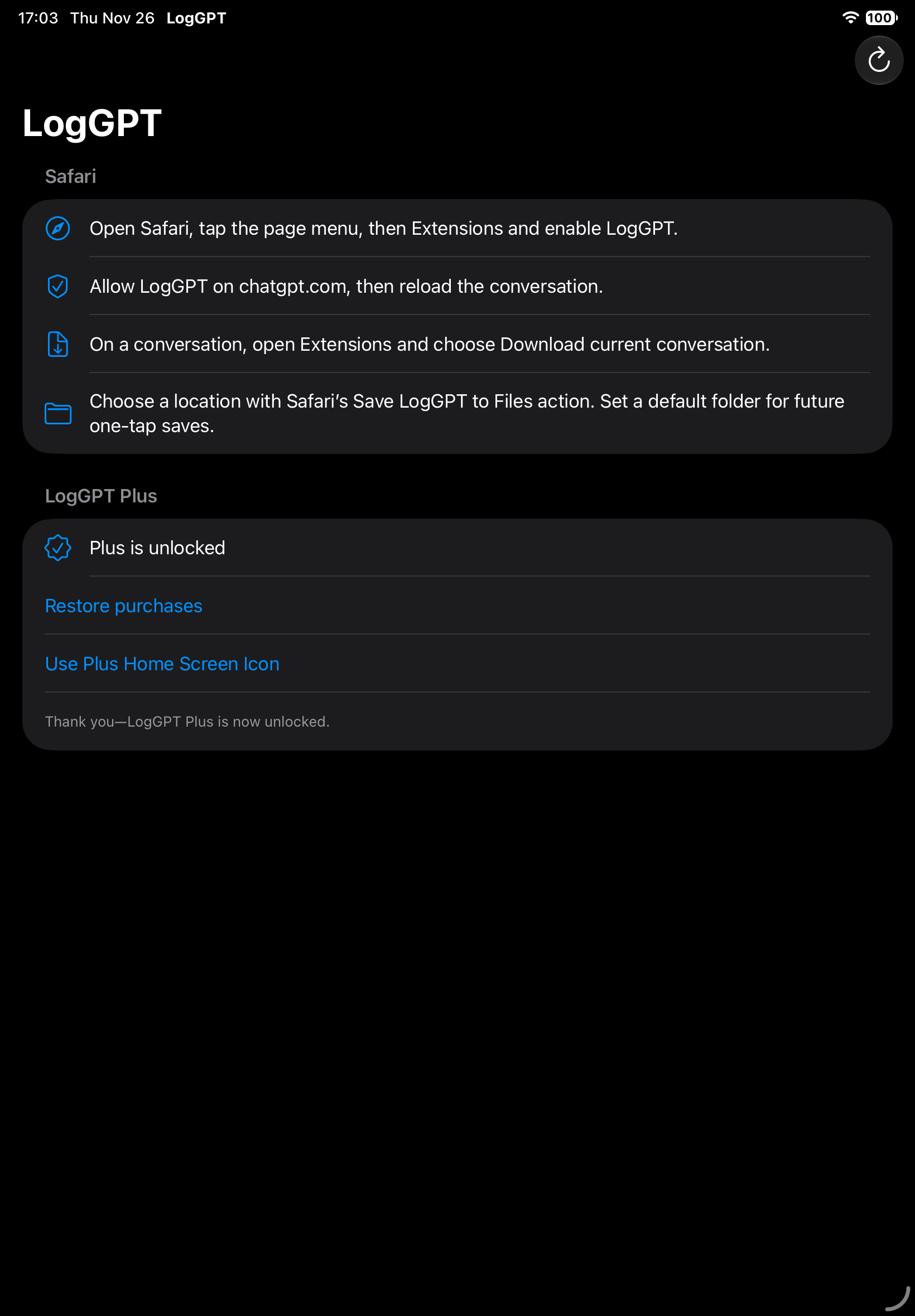
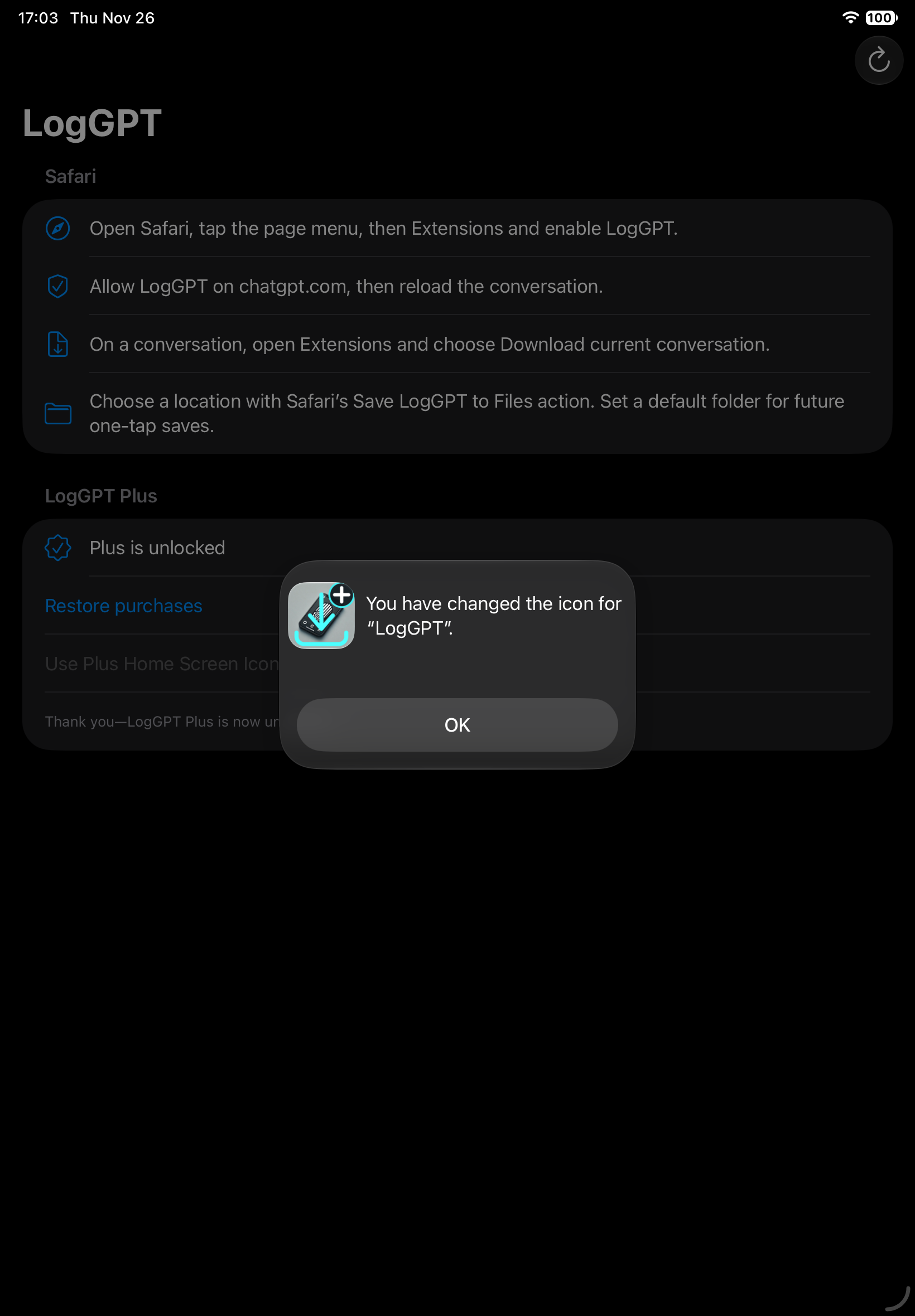
See Plus and its Home Screen icon on iPhone
Export with artifacts
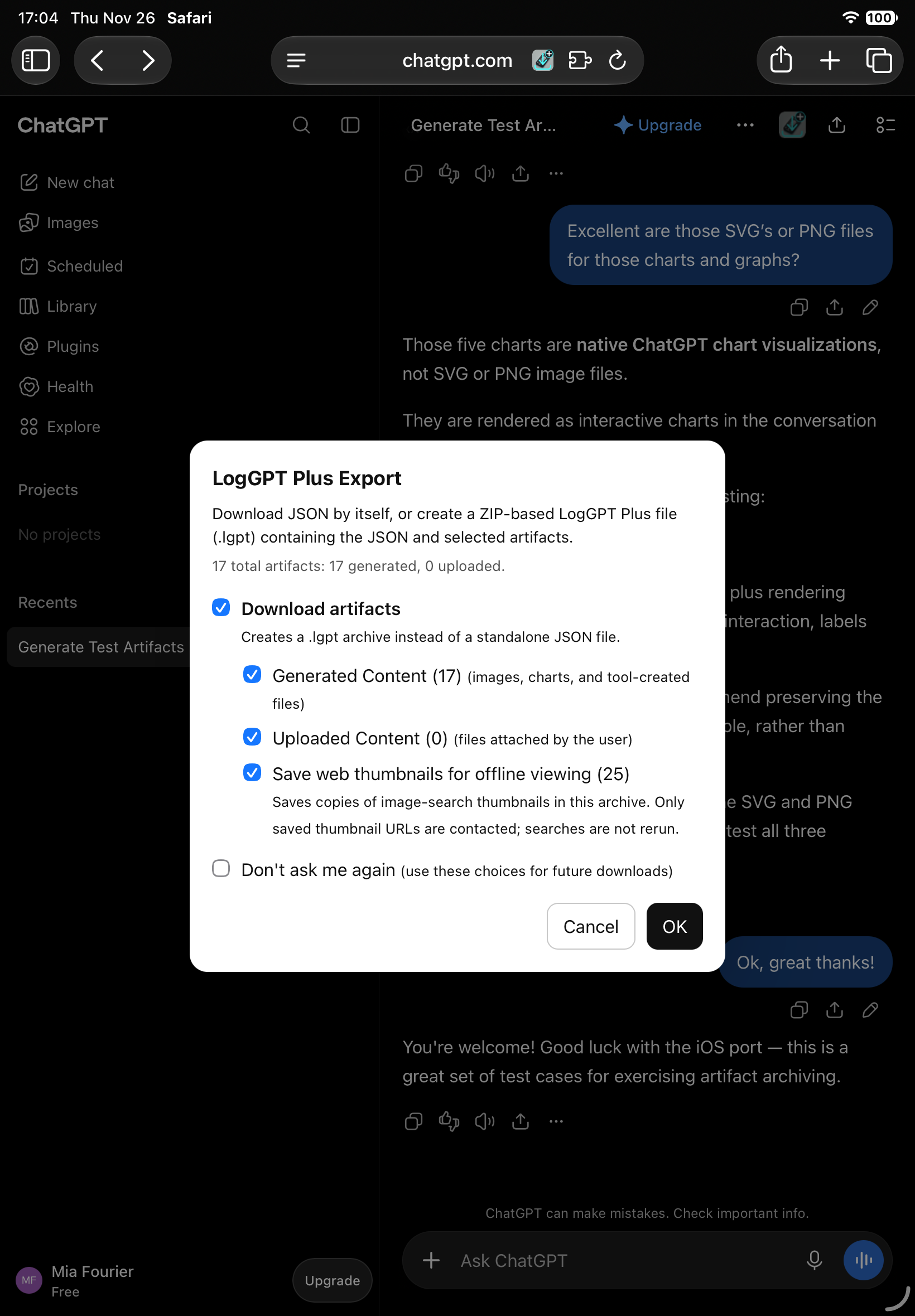
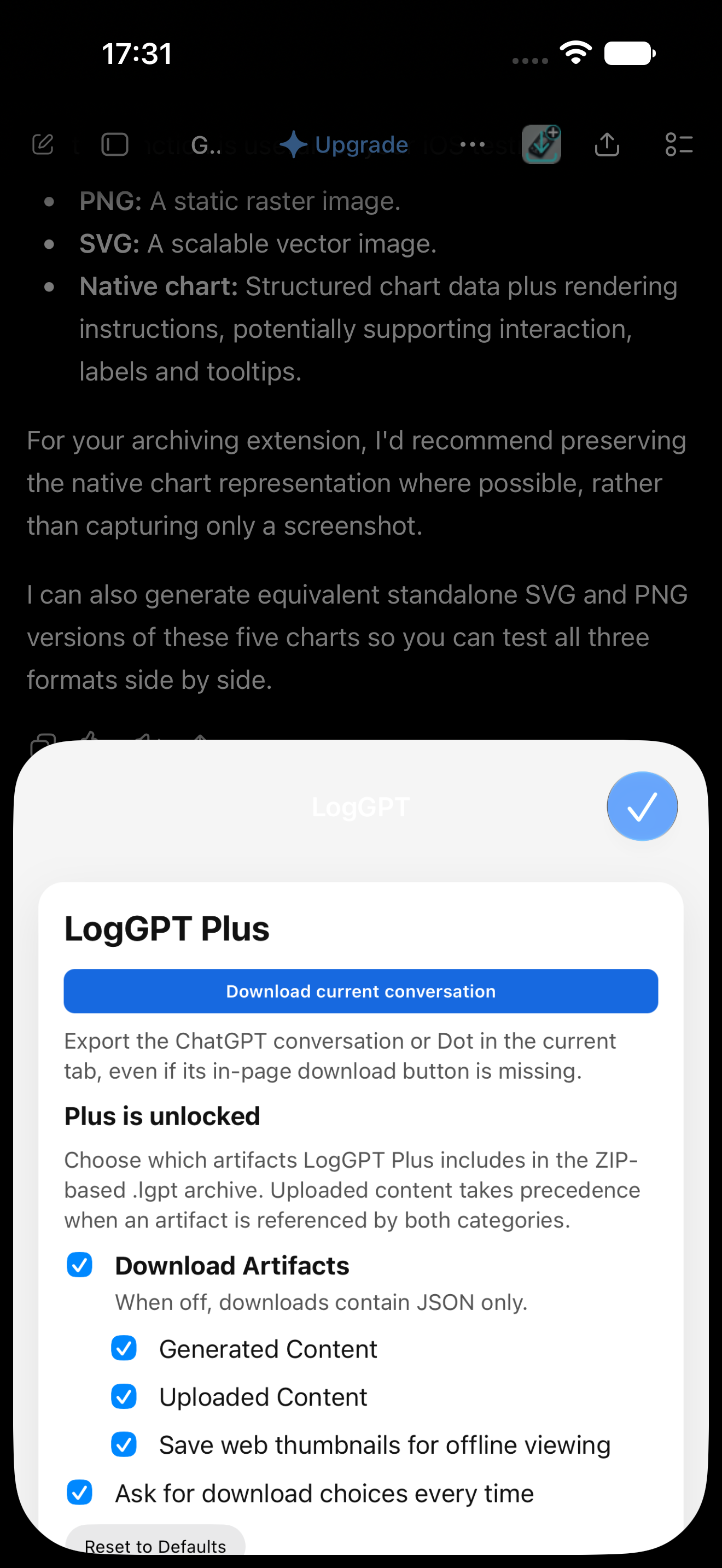
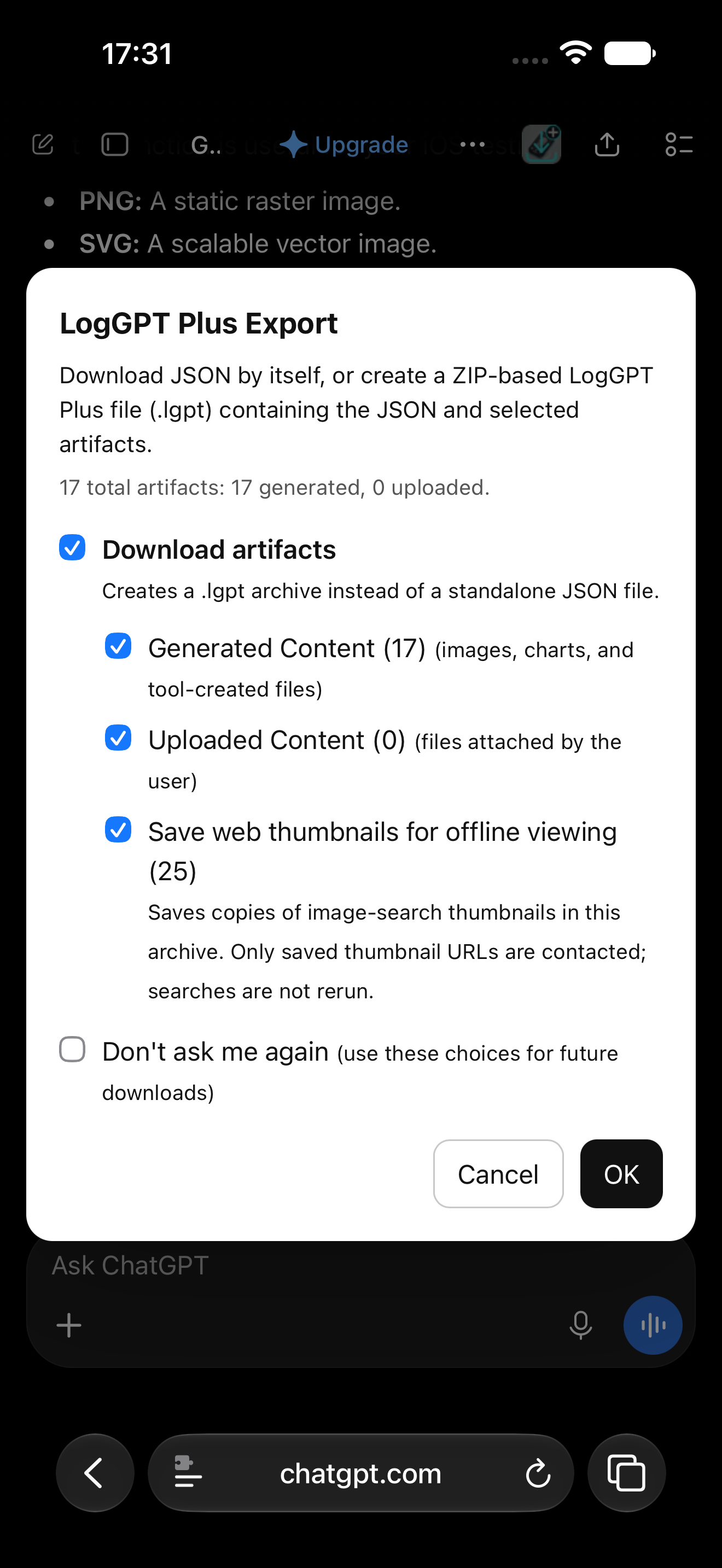
Start another download in Safari. In LogGPT Plus Export, turn on Download artifacts and choose the content to include.
- Generated Content collects available images, charts, and files created during the conversation.
- Uploaded Content collects available files you attached.
- Save web thumbnails for offline viewing saves available image-search previews using the URLs already recorded in the conversation.
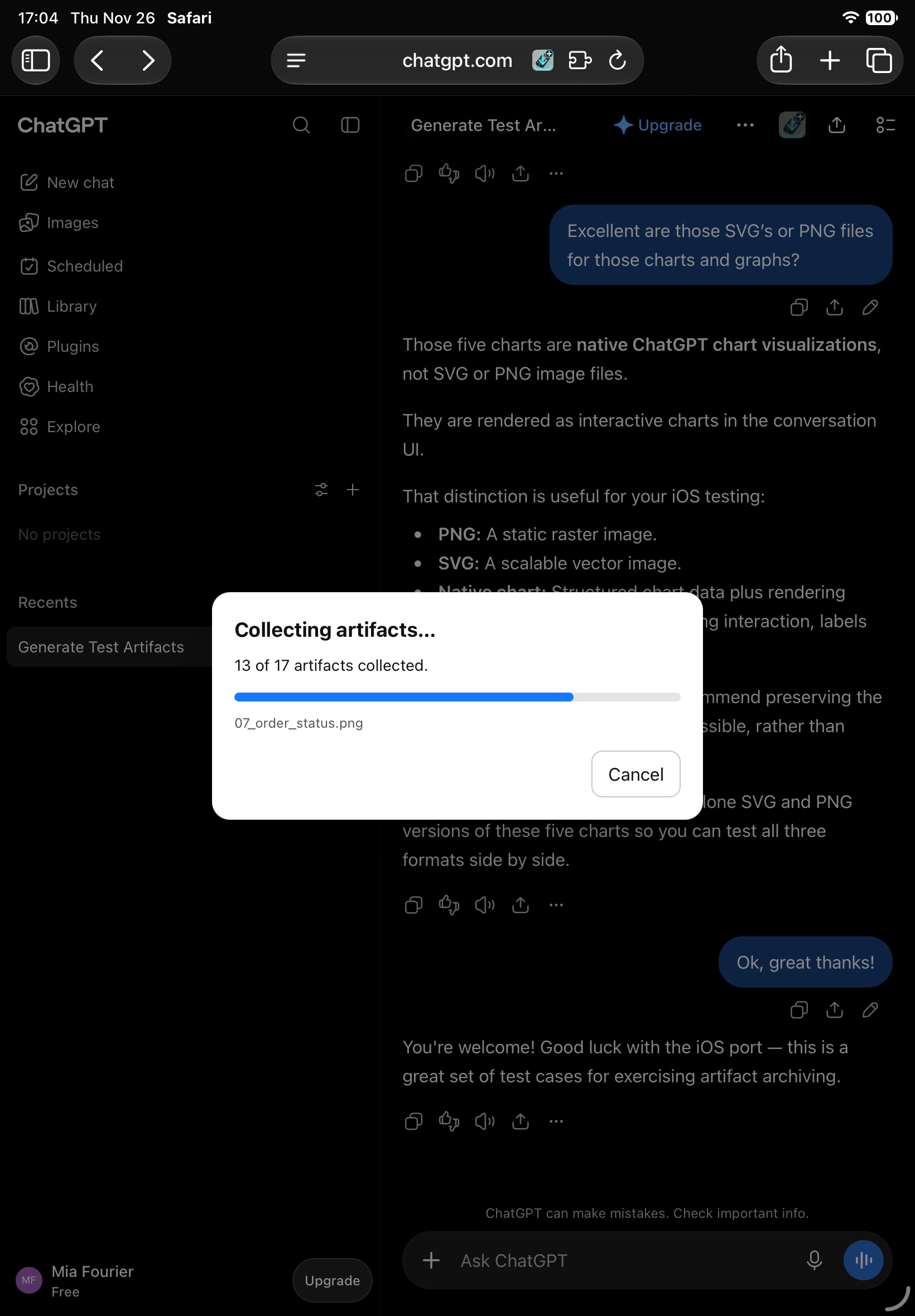
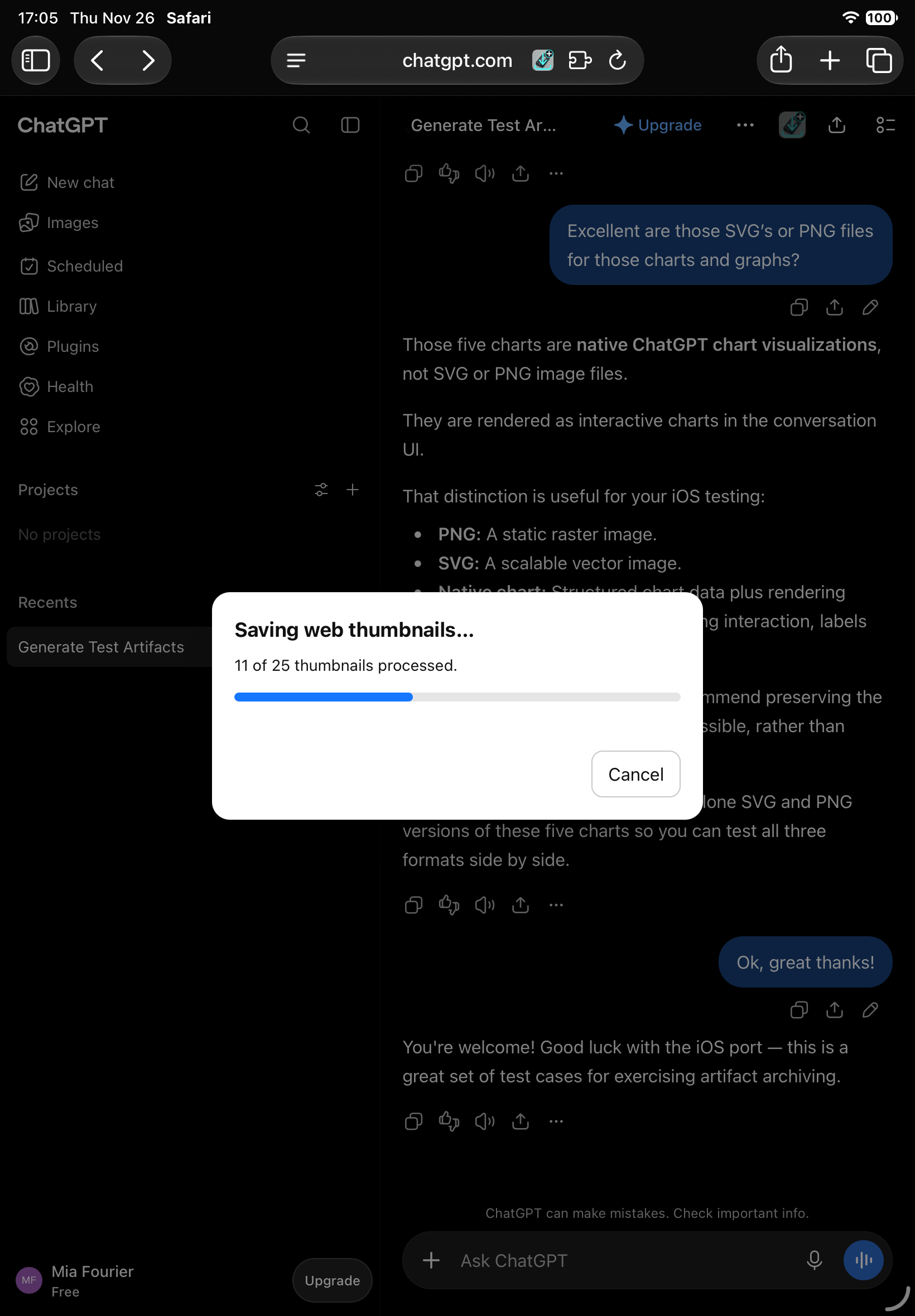
Tap OK and wait for Export ready. The progress panel shows files and thumbnails as they are processed. Tap Cancel if you need to stop. For a JSON-only export, clear Download artifacts before tapping OK.
To reuse your selections, choose Don’t ask me again. You can revise them in the LogGPT toolbar popup, turn on Ask for download choices every time, or use Reset to Defaults.
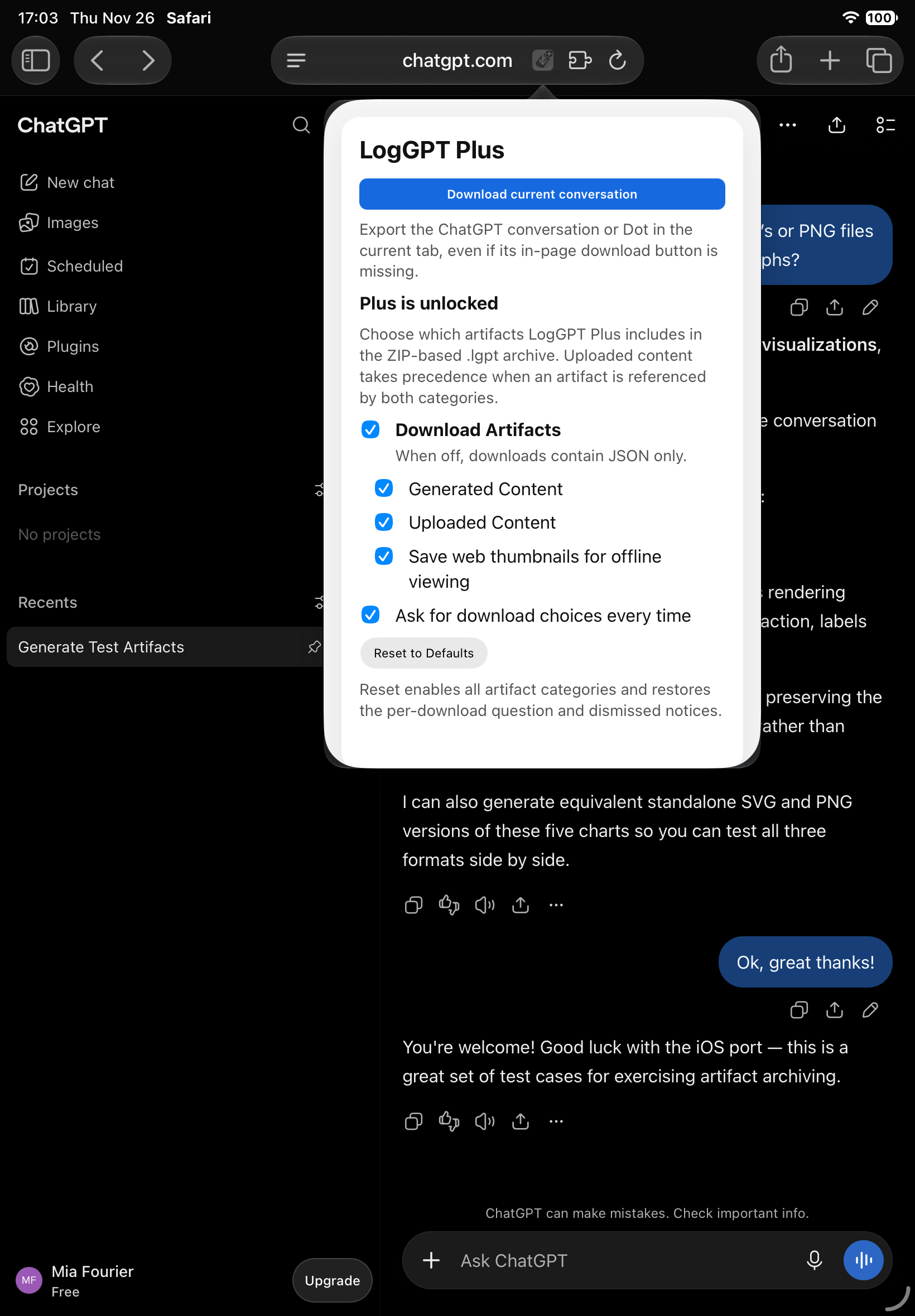
Choose what Plus includes on iPhone
Remember a default folder
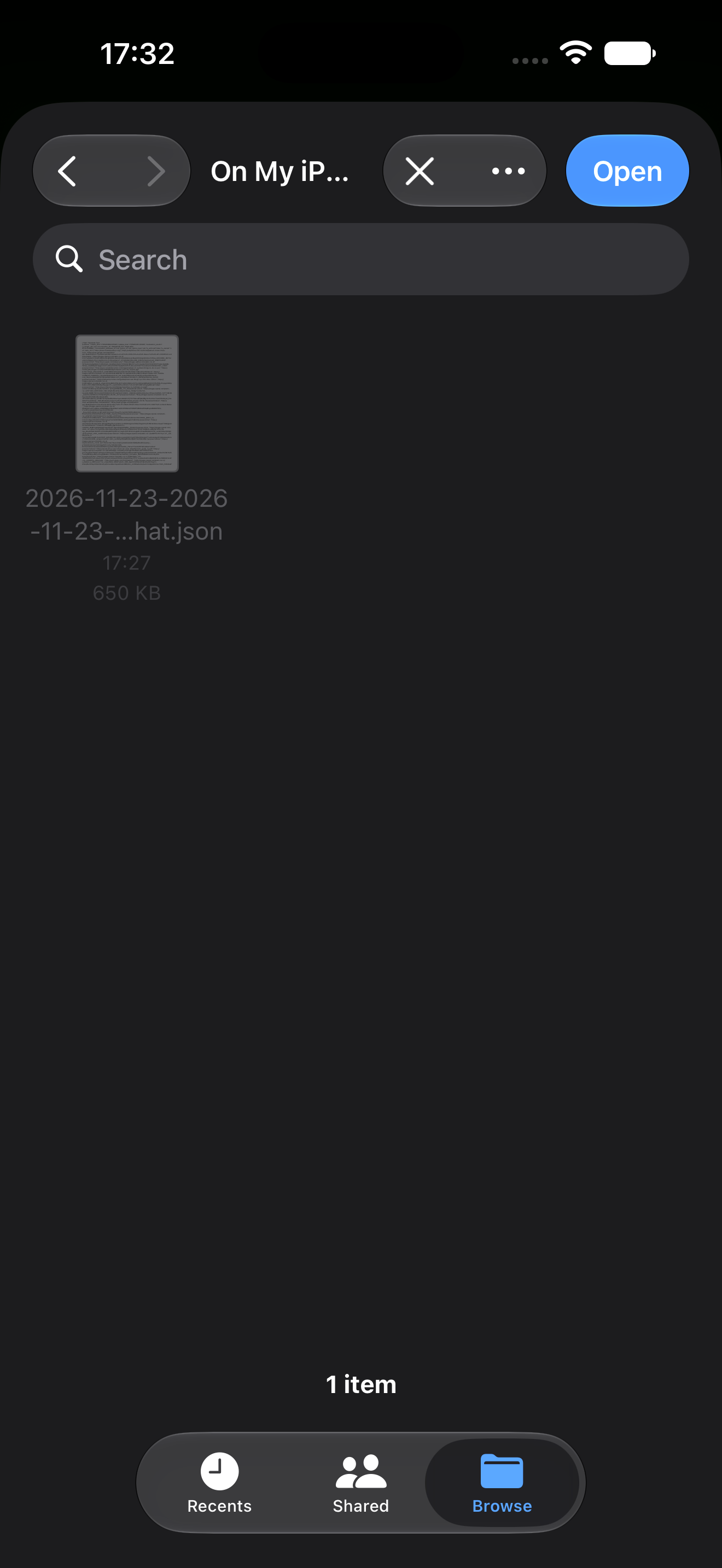
- In Export ready, tap Set Default Folder, then Save LogGPT to Files.
- In the Files picker, navigate to the folder you want and tap Open. This selects the folder and returns you to Export ready.
- Check the location below the filename, then tap Save. In future exports you can tap Save to use that folder again.
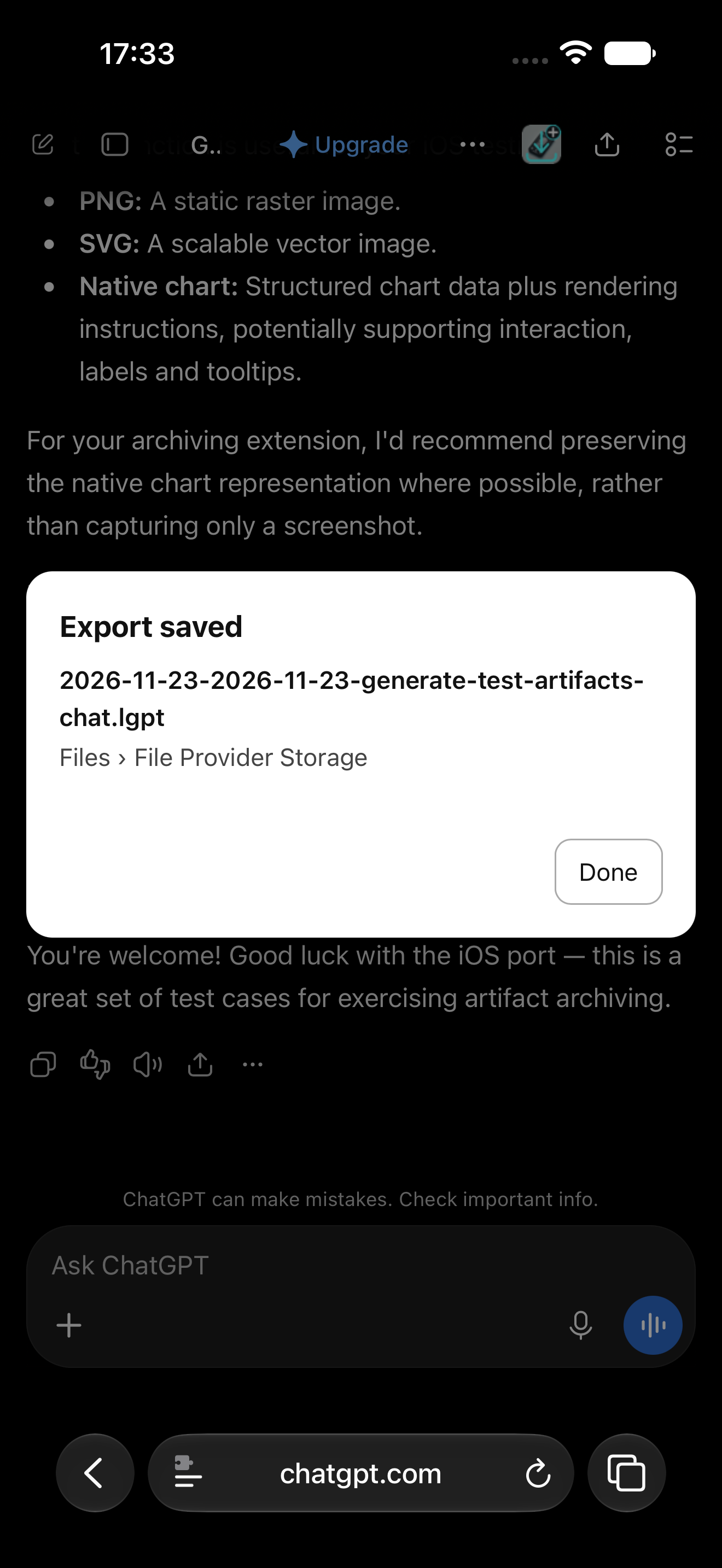
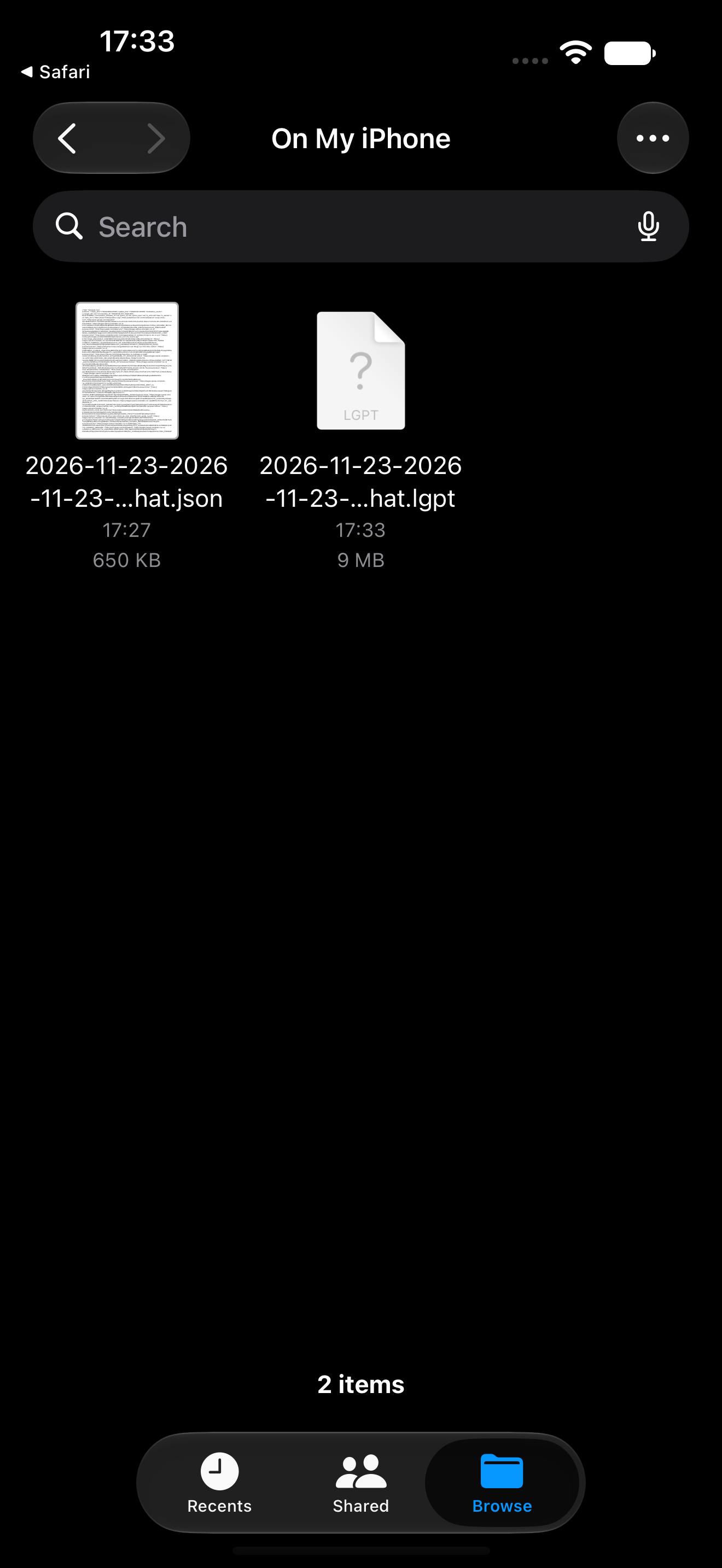
If the destination reads Files ‘ File Provider Storage, open On My iPhone or On My iPad in Files to find the export. For one export somewhere else, use Change Location. To change the remembered location, use Set Default Folder again.
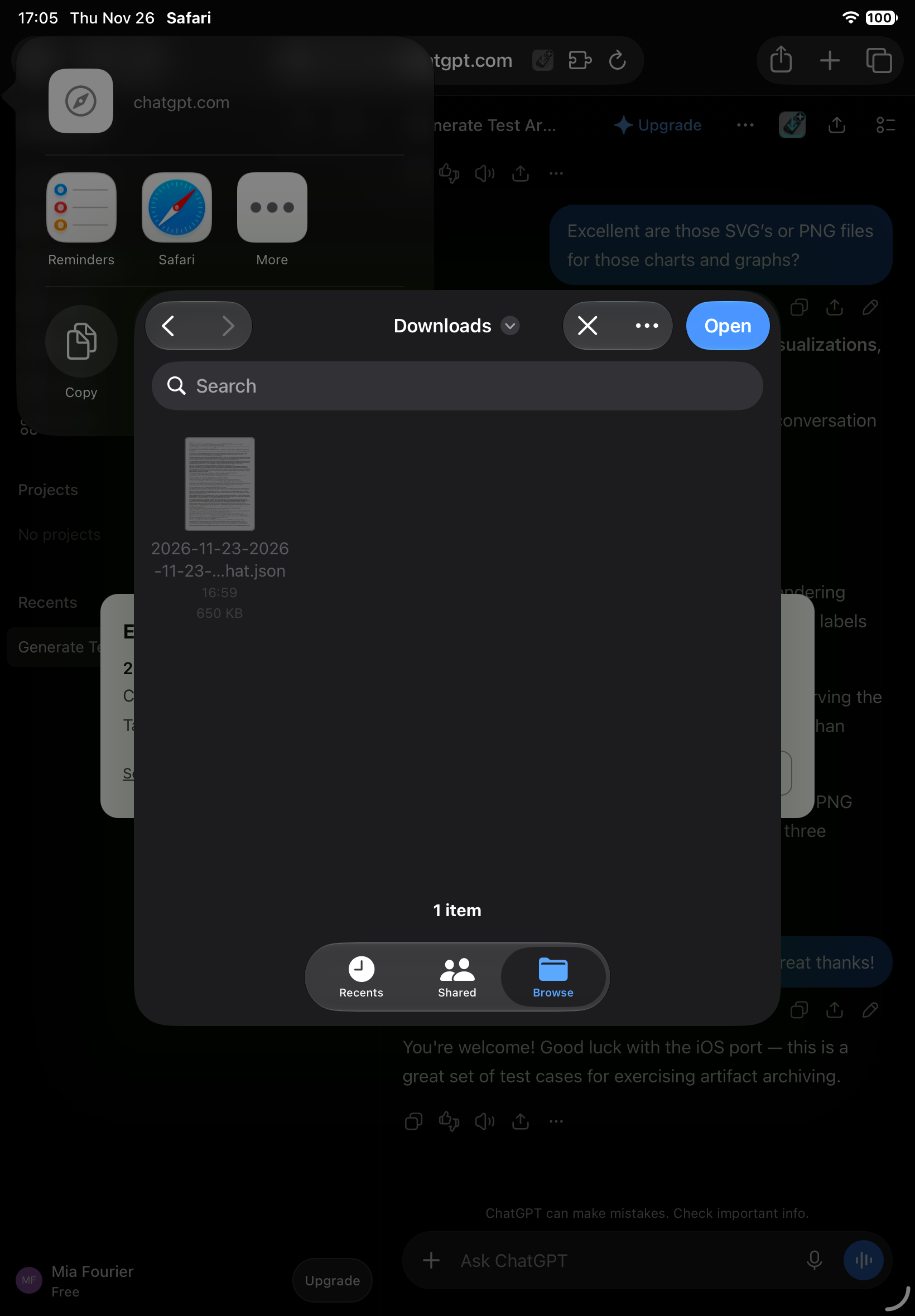
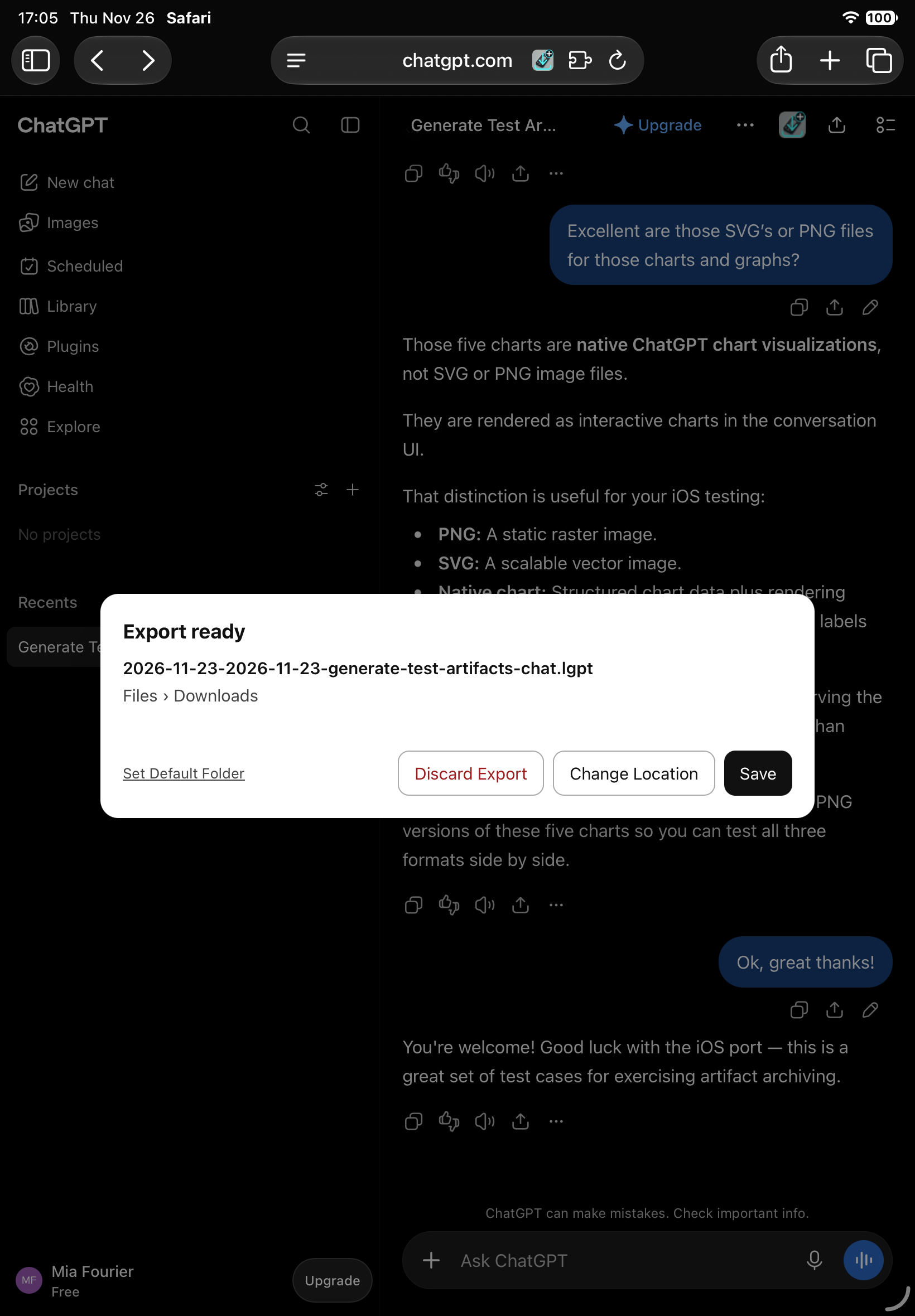

Set the default folder on iPhone
Move LogGPT higher in Share
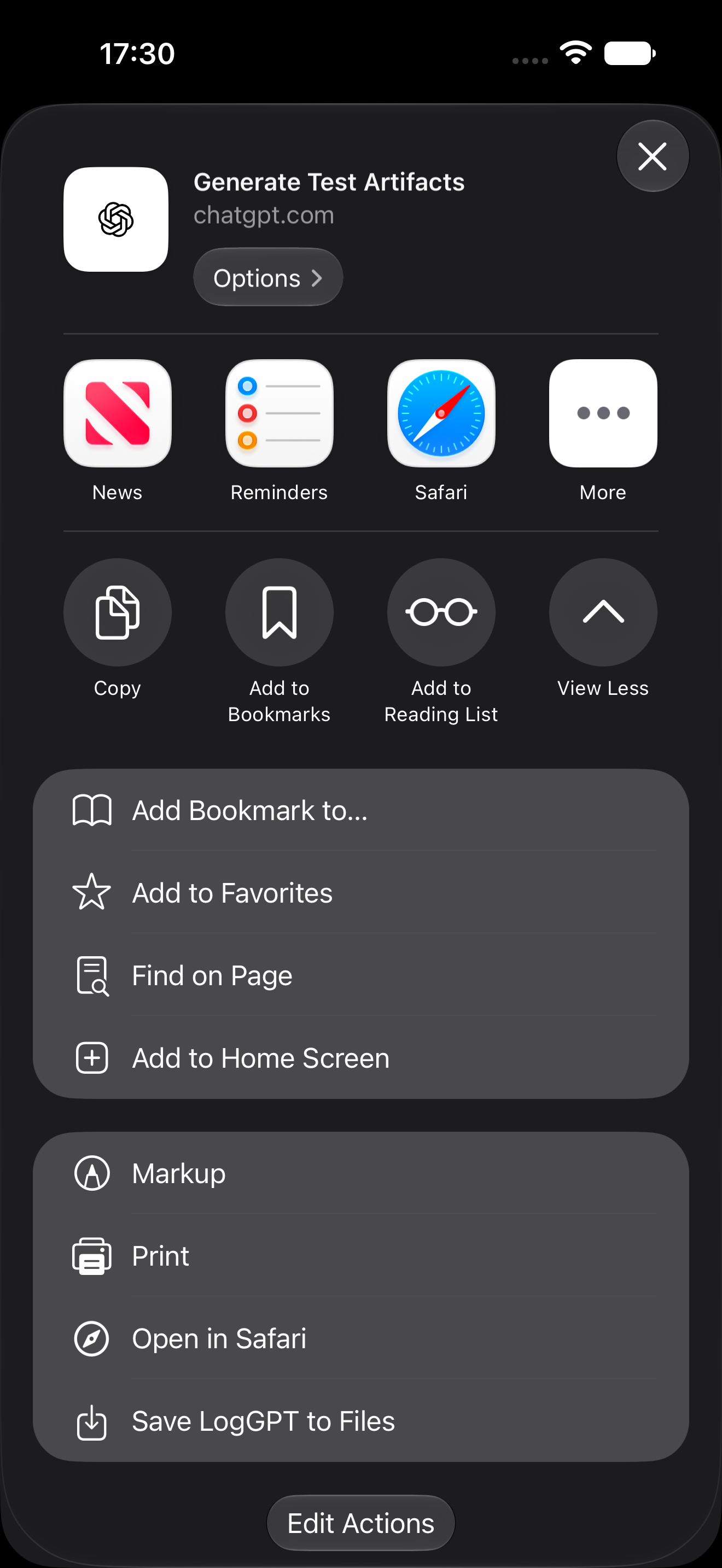
- Open a conversation in Safari and tap Safari’s square-with-arrow Share button. If you use the compact toolbar on iPhone, open Safari’s page menu first and tap Share.
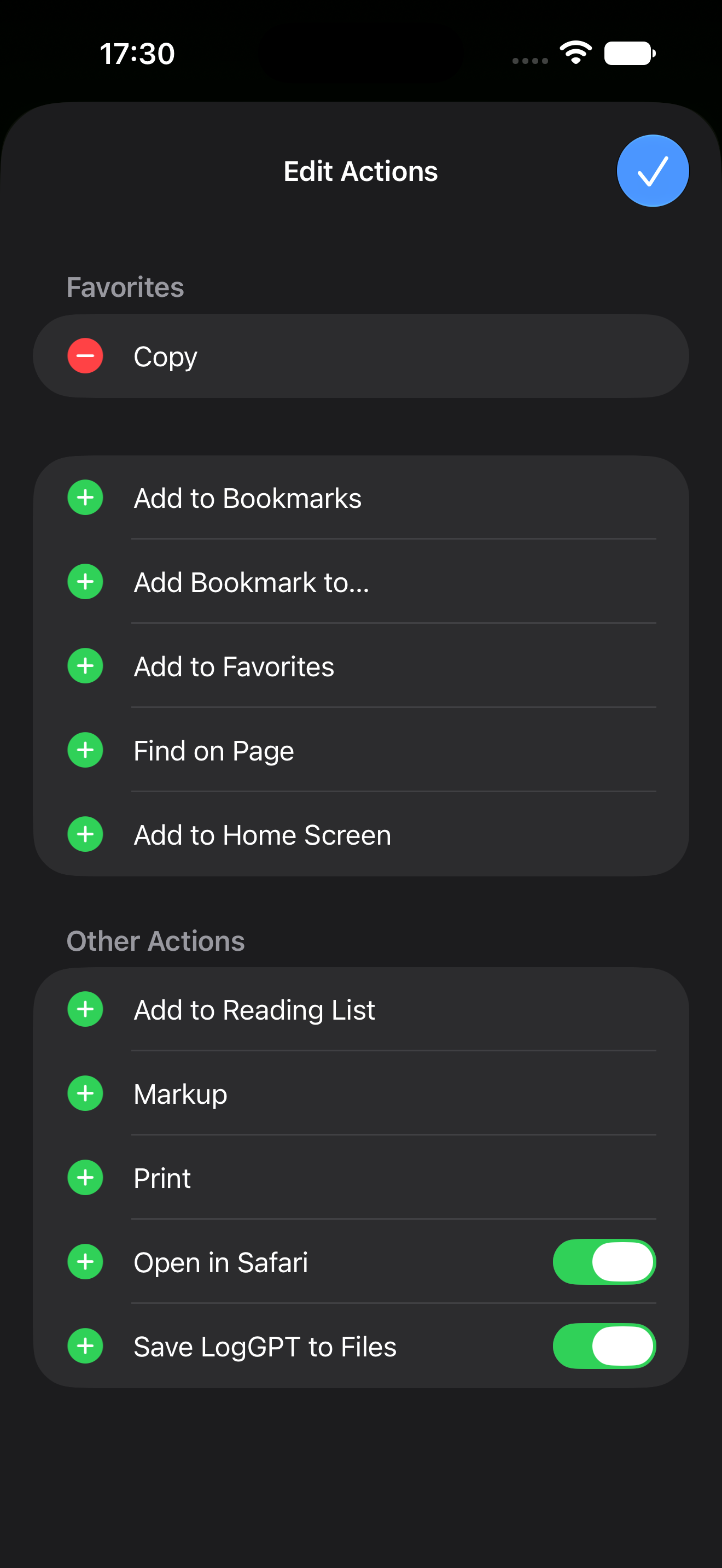
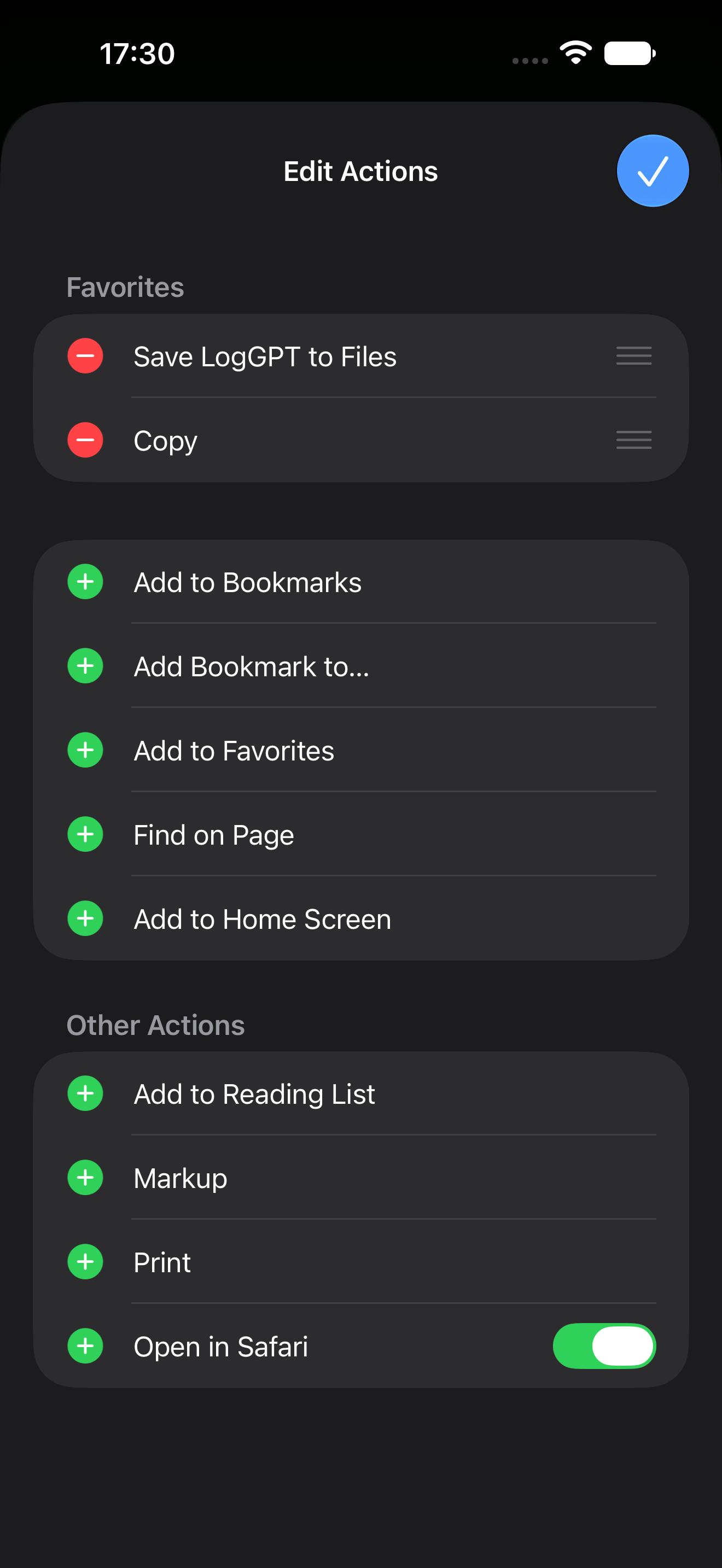
- At the bottom of the actions list, tap Edit Actions. Use View More first if it’s visible.
- If Safari shows a + next to Save LogGPT to Files, tap it to add the action to Favorites. If a reorder handle appears, drag the action higher, then tap Done or the checkmark. Some versions show an on/off switch. Turn the action on there when that’s the control Safari presents.
Troubleshoot an export
- The download button is missing. Check that you’re on a conversation in Safari, LogGPT is enabled, and it has access to
chatgpt.com. Reload the conversation or open Download current conversation from the LogGPT toolbar popup. - A file is still waiting to be saved. Use Save, Choose Location, or Change Location to finish. Use Discard Export to clear the waiting file if you no longer need it.
- Collection has stopped progressing. Tap Cancel. If the panel stays stuck, reload the conversation and try again. To save the conversation without waiting for attachments, turn off Download artifacts and save it as JSON.
- The folder is unavailable. Use Change Location for the current file or Set Default Folder to choose a folder you can access.